




Transaction overview: every incoming payment at a glance
Every payment from your clients is in one place, whether online, by bank transfer or on site. You spot open amounts right away, mark them as paid or send a payment reminder.
- Free plan, free forever
- No demo call, start right away
- No credit card
Updated 25 September 2026
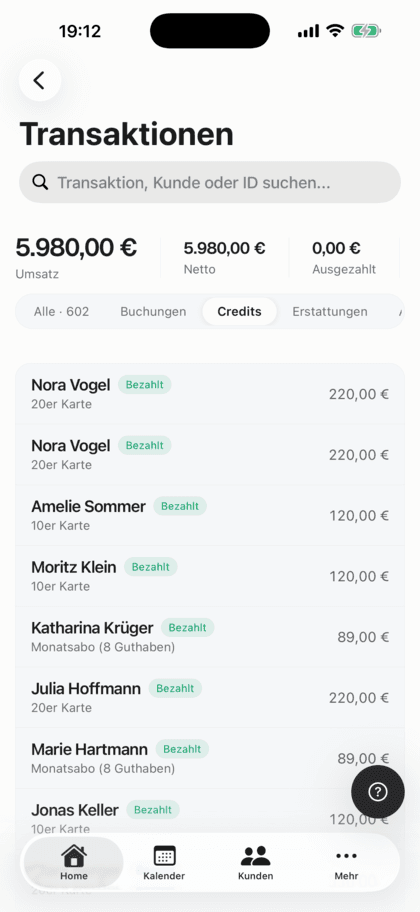
The transaction overview at a glance
- even the Free plan, no add-on
- In every plan
- online, PayPal, bank transfer, on site, credits
- All payment methods
- revenue, net, paid out, pending
- 4 key figures
- per direct payment through Stripe, with net
- Stripe fee
- commission on your bookings
- 0%
- servers, GDPR-compliant
- Frankfurt
What is a transaction overview?
A transaction overview shows you all your studio's payments in one list: credit purchases, bookings, gift card purchases and refunds, each with client, offering, date, status and amount. In Bookicorn you find it in the Manager under Transactions. Open payments by bank transfer or on site stay Pending until you mark them as paid. For online payments through Stripe, you also see the fee, net payout and payout status.
- Who it's for
- For owners and admins of your studio who want to know which money is in and which is still missing. Instructors with their own login don't see transactions.
- What you get
- A sortable list of all payments with search, tabs for bookings, credits and refunds, four key figures and a breakdown by revenue source.
- What it costs
- The transaction overview is included in every plan, even the Free plan for €0. You pay 0% commission on your bookings.
Who has paid already and who hasn't?
- Did you get my bank transfer for the 10-class pack?
- I paid in cash last week, is that recorded?
Bank statement, Stripe dashboard and a list on paper: to see who still has to pay, you search three places. Anyone who hasn't paid often only stands out late.
Every payment is in one list with its status. You see open amounts right away, mark them as paid with one tap and see how often you've already sent a reminder.
How to keep your payments under control
You don't have to enter anything. Every payment lands in the list on its own, and you only take care of what's still open.
- 1
Payments come in
Every credit purchase, booking and gift card purchase appears in the list automatically, with client, offering, date, status and amount.
- 2
Handle what's open
Payments by bank transfer or on site stay Pending until you mark them as paid. If you like, a payment reminder with your bank details goes out by email.
- 3
Track payouts
For online payments through Stripe, you see gross, Stripe fee and net payout, plus whether the money has already been paid out or when it becomes available.
What the transaction overview can do
Everything that's paid at your studio, in one place. No add-on, in every plan.
All featuresTabs, search and sorting
Switch between all payments, bookings, credits and refunds, search by client, email or offering and sort by any column.
Key figures above the list
Revenue, net, payouts already made and payouts still pending are at the very top. So you see where you stand as soon as you open it.
Mark as paid
You confirm payments by bank transfer or on site after a quick confirmation. For a credit purchase, this releases the credits.
Payment reminder by email
For open payments, send a reminder with your bank details or PayPal information and the payment reference. The overview counts how often you've already reminded.
Stripe fee and payout
For direct payments through Stripe, you see gross, fee and net payout, the payout status, when the money becomes available, and a link to the Stripe dashboard.
Refund credit purchases
Refund a paid credit purchase right from the transaction. If it was paid through Stripe, the amount goes back automatically and the credits are deactivated.
Invoice with one tap
With the Invoicing System add-on, every payment is linked to its invoice. You open the invoice and cancellation invoice right from the transaction.
Gift card purchases in view
With the Vouchers add-on, purchased gift cards appear in the list too. You confirm or cancel open orders there.
Also included
- The actual payment method per online payment, such as Apple Pay or credit card
- Bookings paid with credits show the number of units
- Change status by hand: paid, pending, failed, refunded
- Breakdown with revenue sources and their percentage share
- Net overview of the month after instructor payouts and Stripe fees
- Block bookings as one payment with the total price
- The revenue card on the dashboard leads straight here
- In the Manager in the browser and in the app
Start for free, no demo call
Create your account and set everything up in a few minutes. The Free plan stays free forever, and for 14 days you can also try every feature.
- Start right away, no demo call
- No credit card needed
- Cancel monthly
 BookicornFree plan
How studios use the transaction overview
Four typical workflows from different industries. You decide which payment methods apply per offering.
Yoga studio
10-class packs by bank transfer. Once a week you check the Credits tab and remind anyone who hasn't paid yet.
- Payment method
- Bank transfer/PayPal
- Tab
- Credits
- Action
- Payment reminder
Dance school
Many pay cash at the front desk. After class you mark the on-site payments as paid right in the app.
- Payment method
- Pay on site
- Status
- Pending until paid
- Action
- Mark as paid
Personal training
One-on-one sessions paid online by card or Apple Pay. You see the fee and net per session and when Stripe pays out.
- Payment method
- Direct payment through Stripe
- In detail
- Gross, fee, net
- Payout
- pending or paid out
Pottery studio
Workshops paid online, and lots of gift cards in December. You confirm open gift card orders right in the list.
- Payment method
- Stripe and on site
- Add-on
- Vouchers
- Action
- Confirm payment
What goes well with the transaction overview
Core features are included in every plan, add-ons you turn on when you need them.
Online payments with Stripe
Your clients pay online when booking by card, Apple Pay, Google Pay, Klarna and more. The money goes directly to you through Stripe, with no commission.
Learn morePayment reminders
If a bank transfer is still pending, you send your client a payment reminder with all payment details in one tap. Bookicorn keeps count.
Learn moreRefunds
When you cancel a booking, Bookicorn refunds online payments automatically through Stripe or PayPal and returns credits. Cash payments become a reminder.
Learn moreInvoicing system
Automatic invoices and cancellation invoices for bookings, credit and gift card purchases, with ZUGFeRD PDF and a copy to your accounting.
Learn moreRevenue and statistics
Revenue and occupancy on the dashboard compared to the previous period, plus net, revenue sources and key figures per offering and per client.
Learn moreClass packs
Sell 10-class packs and other class packs online. Bookicorn deducts credits with every booking and shows your clients their balance.
Learn moreFrequently asked questions about the transaction overview
Answered briefly. The first sentence is always the answer.
Can't find your question?
Write to usYes, it's included in every plan, even the Free plan for €0. You don't need an add-on for it.
Still have questions about the transaction overview?
Write to us in two minutes. You get a personal reply from people, not from a bot, and we tell you honestly whether Bookicorn is right for you.

Hi, I'm Daniel. Tell me briefly what you offer, and I'll tell you how to set it up in Bookicorn.
Daniel Haenle · replies personally

Keep every payment in view
Create your account, connect Stripe or add your bank details, and every payment lands in your overview automatically. The Free plan stays free, and you don't need a credit card.
- 14 days of every feature
- No credit card
- 0% commission
- No minimum term
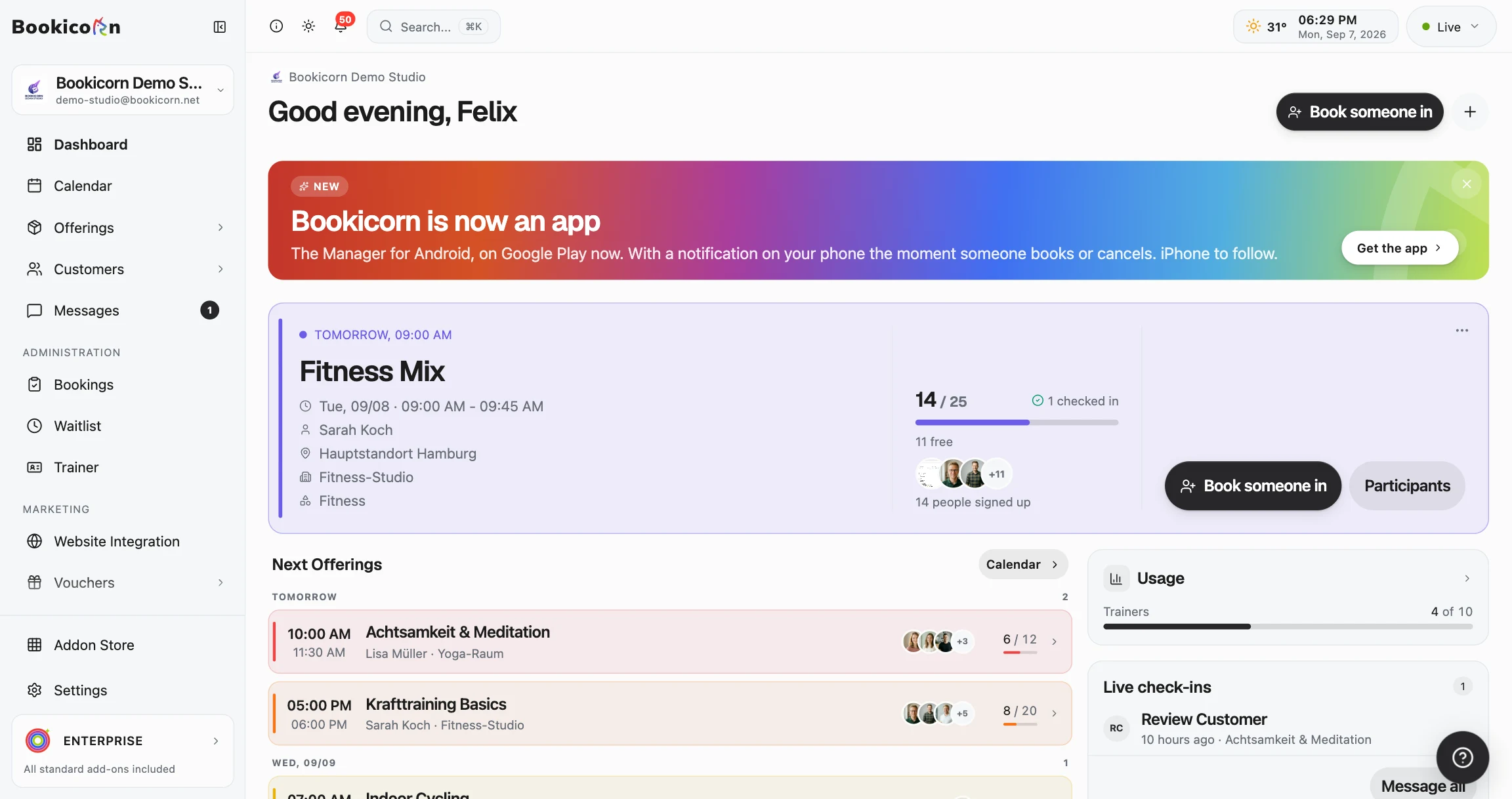
Ready to go in minutes
- Create your account
- Add your first offering
- 3Share your booking page