




Staff portal: their own login per instructor, with the right permissions
Your instructors sign in to the Manager themselves, see their sessions and keep their profile up to date. You share participant lists, attendance, cancellations and client data per instructor.
- Free plan, free forever
- No demo call, start right away
- No credit card
Updated 25 September 2026
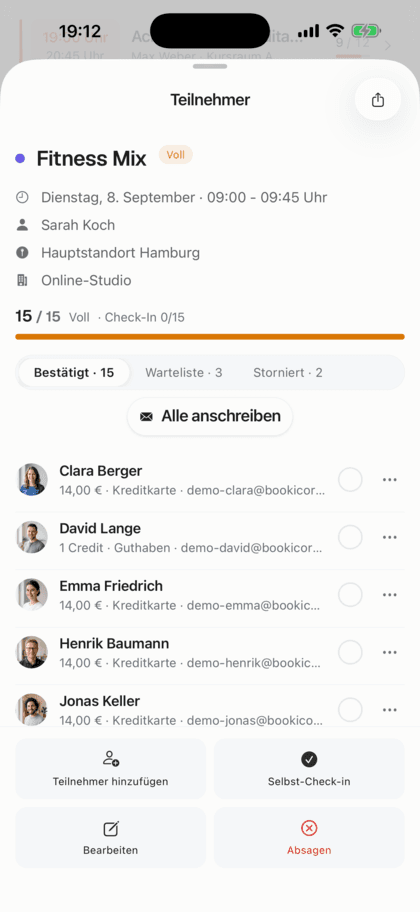
The staff portal at a glance
- takes one add-on slot, even on the Free plan
- Add-on
- one login for the Manager everywhere
- Web, iOS, Android
- as a template, then every permission individually
- 3 roles
- until you share more
- Only their own sessions
- the link in the welcome email is valid
- 7 days
- notice on booking, cancellation and waitlist
- By email
What is a staff portal?
A staff portal gives every instructor in your studio their own login for the Manager, in the browser or in the app for iOS and Android. In Bookicorn, they see their sessions there and keep their profile up to date. You share participant lists, attendance, cancellations or client data with them depending on the role and through individual permissions.
- Who it's for
- For studios with a team where instructors should see their participants, check off attendance or manage their own sessions.
- What you get
- Individual logins with a welcome email, three roles as templates, permissions for menus, actions and client data, emails about their own sessions and a dedicated area for every instructor.
- What it costs
- The Trainer Portal is an add-on and takes one add-on slot in your plan, which already works on the Free plan. You pay 0% commission on your bookings.
How to get Trainer Portal
You turn on Trainer Portal in the Add-on Store of your Manager with one tap and can switch it off at any time. It uses one of your plan's add-on slots. Once all slots are taken, you can add it on in the paid plans.
- Login for the Manager in the browser, on iOS and Android
- Permissions per instructor: menus, actions and client data individually
- Instructors without a login stay in staff management as contacts
- Required for the Trainer Payouts pay add-on
- Free
- 1 slot
- Starter
- 3 slots
- Professional
- 8 slots
- Premium
- all add-ons
The participant list by WhatsApp, every evening?
- Can you send me the list for tomorrow morning?
- How many are signed up for tonight?
- I forgot who was there last week. Can you enter that?
Your instructors ask for participant lists, numbers and cancellations. You send screenshots and enter the attendance yourself in the evening.
Every instructor signs in themselves, sees their sessions and participants and checks off attendance directly, as far as you allow it.
Their own access in three steps
You set up the login once and adjust the role and permissions at any time.
- 1
Create a login
Turn on the login when you add the instructor, or create it later in their profile. The instructor gets a welcome email and sets their own password.
- 2
Choose role and permissions
Start with a role and adjust individual permissions: which menus, which actions and which client data the instructor sees.
- 3
Instructors work on their own
In the dashboard and calendar, the instructor sees their sessions with occupancy and does what you allow them to.
What the staff portal can do
From the substitute who only sees their own sessions to the studio lead who helps plan: everything through role and permissions.
All featuresRole as a template
Choose Basic, Full or Manager as a starting point. If you then adjust a permission, it becomes a custom configuration.
Permissions for menus, actions and data
Decide which areas an instructor sees, whether they can create, edit or cancel sessions, and which client data they see in the participant list and client profile.
Only their own sessions
The dashboard and calendar only show an instructor their own sessions. With the See all offerings permission, they can also look at the others' sessions.
Participants and attendance
With the right permissions, an instructor sees the participants of their sessions, books clients in, checks off attendance, confirms requests or cancels bookings.
Keep their own profile
Instructors keep their photo, bio, phone, qualifications and specialties up to date themselves. What they enter appears on your booking page.
Emails about their own sessions
Turn on emails per instructor for new bookings, cancellations and the waitlist. Each event can be turned off individually.
My Finances
Instructors see their bookings per month with the credits used and their share of them, browse earlier months and export the list as a CSV.
Access by welcome email
The instructor gets a link to set their password. You send a password reset or a new welcome email right from their profile.
Also included
- Settings, Add-on Store and staff management stay reserved for admins
- Messaging permissions together with the Messages & Course Chats add-on
- Connect their own calendar with the Calendar Synchronization add-on
- Payouts through Stripe with the Trainer Payouts pay add-on
- Change the email and the login follows
- The instructor profile shows who already has a login
Start for free, no demo call
Create your account and set everything up in a few minutes. The Free plan stays free forever, and for 14 days you can also try every feature.
- Start right away, no demo call
- No credit card needed
- Cancel monthly
 BookicornFree plan
What the staff portal looks like for you
Three typical setups from different industries. Each takes just a few minutes to set up.
Yoga studio
Substitutes only see their own sessions and check off attendance there.
- Sessions
- own only
- Attendance
- check-off allowed
- Client data
- none
Dance school
The studio lead helps plan: sees all offerings, creates and cancels sessions, books clients in.
- Sessions
- sees all
- Create, cancel
- allowed
- Participants
- book in, cancel
Personal training
Every instructor keeps their own profile and gets an email with every booking and every cancellation.
- Profile
- self-managed
- Email on
- booking, cancellation
- Phone numbers
- shared
What others use together with the staff portal
Core features are included in every plan, add-ons you turn on when you need them.
Staff management
All your instructors with profile, qualifications and sessions in one place. Assign them to offerings, plan substitutes and keep internal notes.
Learn moreTrainer Payouts
Self-employed instructors get their share automatically through Stripe with every online payment. For employees, you record an hourly rate or flat fee.
Learn moreCalendar Synchronization
Your sessions automatically in Google or iCloud Calendar, with occupancy and participants. Management sees every session, each instructor their own.
Learn moreMessages and chat
Direct messages and group chats with clients and team in the Manager. Your clients reply in the client portal or the client app and get a notification.
Learn moreAttendance tracking
A participant list for every session, as a PDF to check off at the door or as a CSV for spreadsheets. Check off digitally with the Digital Attendance add-on.
Learn moreFrequently asked questions about the staff portal
Answered briefly. The first sentence is always the answer.
Can't find your question?
Write to usYes. Instructors sign in to the Manager with their email, in the browser or in the app for iOS and Android. There they only see what you share with them.
Still have questions about the staff portal?
Write to us in two minutes. You get a personal reply from people, not from a bot, and we tell you honestly whether Bookicorn is right for you.

Hi, I'm Daniel. Tell me briefly what you offer, and I'll tell you how to set it up in Bookicorn.
Daniel Haenle · replies personally

Ready to give your team their own logins?
Create your account, add the Trainer Portal and send your first instructor the welcome email. The Free plan stays free, and you don't need a credit card.
- 14 days of every feature
- No credit card
- 0% commission
- No minimum term
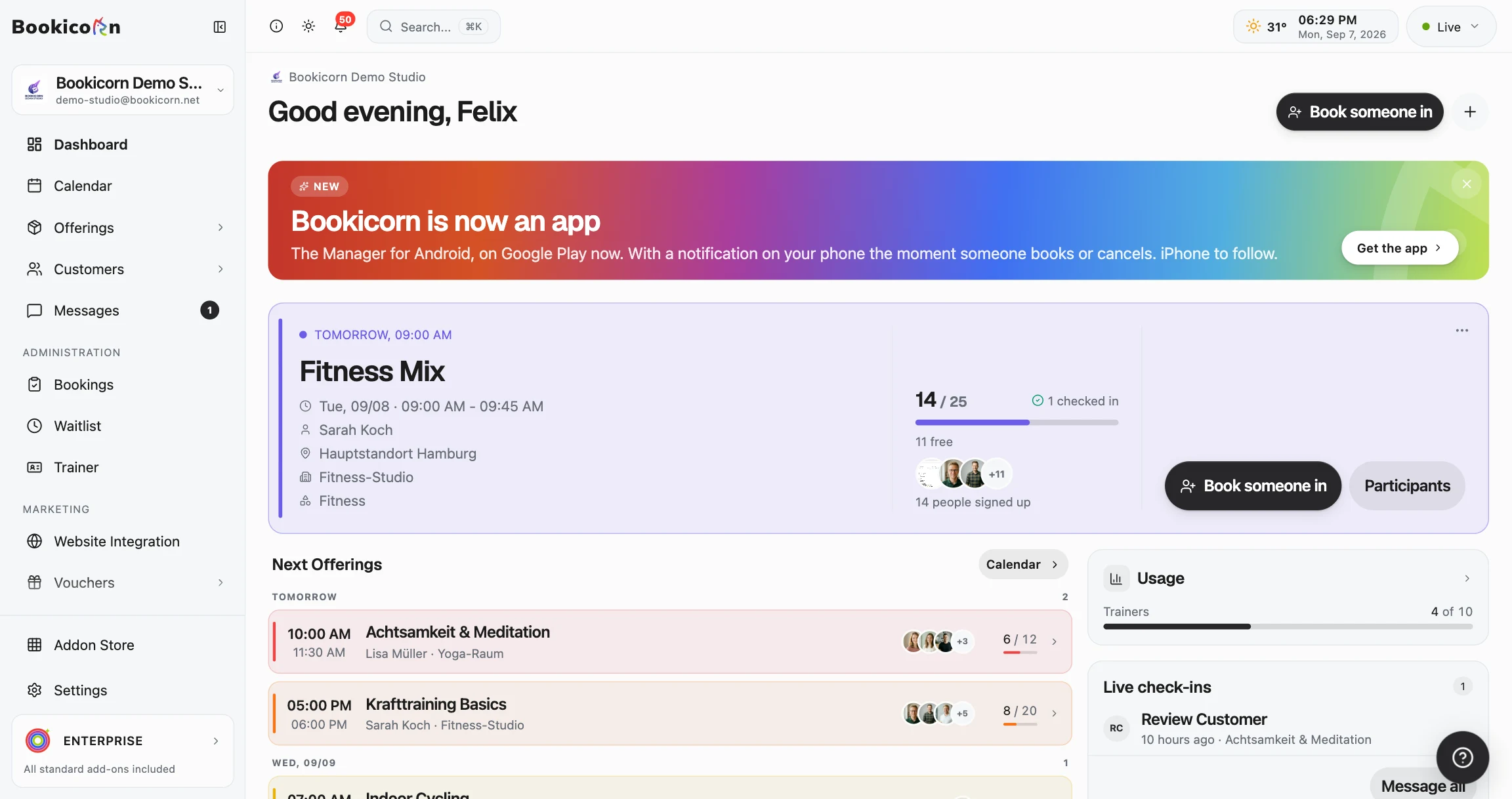
Ready to go in minutes
- Create your account
- Add your first offering
- 3Share your booking page