




Revenue reports and statistics: know how your studio is doing
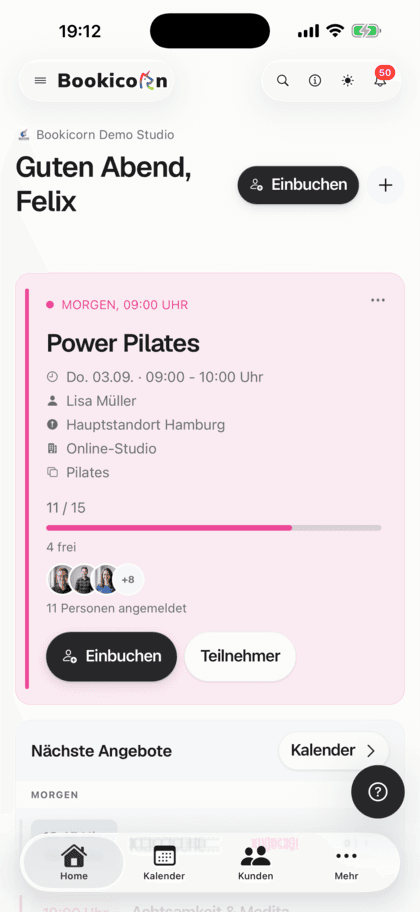
The dashboard shows revenue and occupancy for the last 7, 30 or 90 days compared to the period before. Net, revenue sources and figures per offering and per client are just one tap away.
- Free plan, free forever
- No demo call, start right away
- No credit card
Updated 25 September 2026
Revenue and statistics at a glance
- even the Free plan, no add-on
- In every plan
- period switchable on the dashboard
- 7, 30, 90 days
- to the previous period of the same length
- Comparison
- booked spots per available spot
- Occupancy
- sessions, bookings, occupancy, revenue
- Per offering
- bookings, revenue and credits
- Per client
What do revenue reports and statistics show in Bookicorn?
Revenue and statistics are the key figures Bookicorn shows in the Manager in every plan: revenue and occupancy on the dashboard for 7, 30 or 90 days, each compared to the previous period of the same length. The transaction overview adds net, payouts and revenue sources. Per offering and per client, bookings and revenue appear right in the profile.
- Who it's for
- For owners and admins who want to know how full the sessions are and what's coming in, and for instructors keeping an eye on their own sessions.
- What you get
- A dashboard with revenue and occupancy including trends, transactions with net and revenue sources, and key figures per offering and per client.
- What it costs
- Revenue and statistics are included in every plan, even the Free plan for €0. You don't need an add-on for them.
So how did last month actually go?
- Is the Thursday evening session still worth it?
- How much did we take in during August?
- Is Saturday always this empty?
For every question about revenue or occupancy, you export lists, count participants and work it out in a spreadsheet. By the time you have the answer, the next month is half over.
The dashboard shows revenue and occupancy compared to the previous period. Per offering you see how full the sessions are and what they bring in.
Your numbers in three steps
You don't set anything up. The numbers come from your bookings and payments.
- 1
Open the dashboard
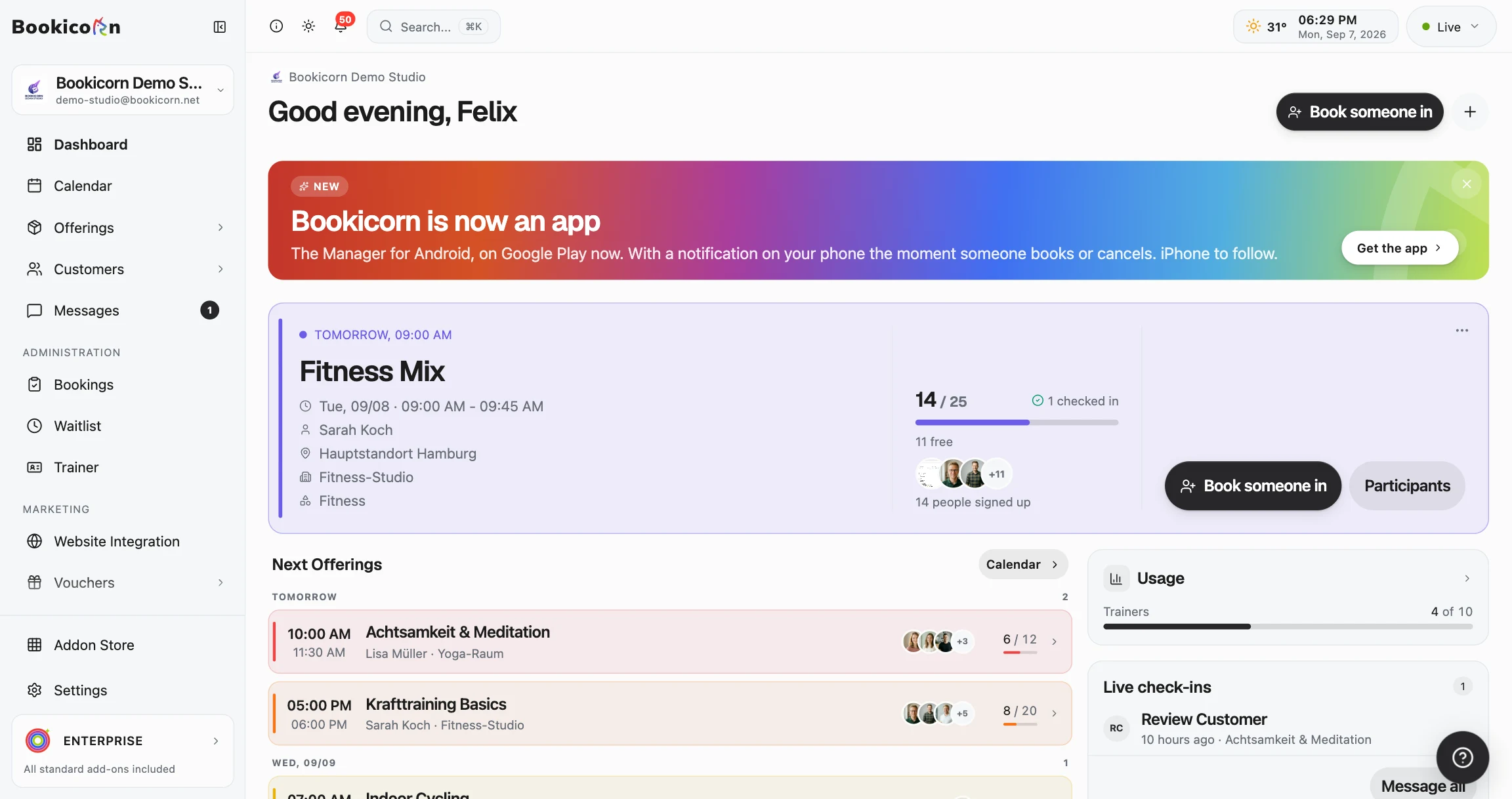
On the Manager's home screen you see revenue and occupancy for the last 7 days, with a trend and a comparison to the 7 days before.
- 2
Choose a period
Switch to 30 or 90 days. The trend then shows weeks instead of days, and the comparison refers to the previous period of the same length.
- 3
Dig deeper
From the revenue card you jump to the transactions with net, payouts and revenue sources. Per offering and per client, the numbers are in the profile.
What revenue and statistics show
Your studio's most important numbers, right where you need them. No add-on, in every plan.
All featuresRevenue on the dashboard
Revenue from bookings over the last 7, 30 or 90 days, with the number of bookings, a trend as bars and a percentage comparison to the period before.
Occupancy of your sessions
How many spots in your sessions were booked during the period, as a trend and compared to the period before in percentage points. Canceled sessions don't count.
Net and payouts
The transaction overview shows revenue, net after instructor payouts and Stripe fees, and payouts already made and still pending.
Revenue sources
The breakdown splits paid revenue into bookings, credits and gift cards, each with amount and percentage share.
Figures per offering
The offering shows its sessions, bookings, occupancy and revenue, and for block offerings counted per block.
Figures per client
In the client profile you see this client's bookings, revenue and current credits at a glance.
Your plan's allowance
If your plan has limits on bookings per month, instructors or clients, the dashboard shows how much of them you've used.
Earnings for instructors
Instructors with their own login through the Trainer Portal add-on see their bookings, redeemed credits and earnings per month under My Finances, with export as a CSV.
Also included
- Recent bookings, new clients and birthdays on the dashboard
- The revenue card leads straight to Transactions
- Open payments and reminders in the transaction overview
- With the Invoicing System add-on: revenue, open and overdue invoices
- Instructors see the occupancy of their own sessions on the dashboard
- In the Manager in the browser and in the app
Start for free, no demo call
Create your account and set everything up in a few minutes. The Free plan stays free forever, and for 14 days you can also try every feature.
- Start right away, no demo call
- No credit card needed
- Cancel monthly
 BookicornFree plan
How studios use their numbers
Four typical questions and where to find the answer.
Yoga studio
Is an extra evening session worth it? Occupancy in the 30-day comparison shows whether the evenings are filling up.
- Period
- 30 days
- Key figure
- Occupancy
- Comparison
- vs. the previous 30 days
Dance school
Which beginners' course is working? The offering shows bookings, occupancy and revenue side by side.
- Where
- Open the offering
- Figures
- Bookings, occupancy, revenue
CrossFit box
What's left after instructor payouts and Stripe fees? The month's net overview calculates it.
- Where
- Transactions, breakdown
- Figure
- Net this month
Music school
Does more come in through 10-class packs or single bookings? The revenue sources show the percentage share.
- Where
- Transactions, breakdown
- Sources
- Bookings, credits
- Share
- in percent
What goes well with revenue and statistics
Core features are included in every plan, add-ons you turn on when you need them.
Transaction overview
All your studio's payments in one list: with status, payment reminders, Stripe fees and payout status.
Learn moreAvailable spots display
Your clients see how many spots are left for every session, on the booking page and in the client app. Sessions filling up or full are clearly marked.
Learn moreClient management
A client list with search and filters, client records with bookings, credits, notes and invoices, plus CSV export and GDPR-compliant removal.
Learn moreInvoicing system
Automatic invoices and cancellation invoices for bookings, credit and gift card purchases, with ZUGFeRD PDF and a copy to your accounting.
Learn moreDATEV Export
A month's invoices and cancellation invoices as a CSV in the DATEV posting batch format, with your accounts, ready to hand to your German tax advisor.
Learn moreTrainer Payouts
Self-employed instructors get their share automatically through Stripe with every online payment. For employees, you record an hourly rate or flat fee.
Learn moreFrequently asked questions about revenue and statistics
Answered briefly. The first sentence is always the answer.
Can't find your question?
Write to usYes, in every plan, even the Free plan for €0. The dashboard, transaction overview and key figures per offering and per client don't need an add-on.
Still have questions about revenue and statistics?
Write to us in two minutes. You get a personal reply from people, not from a bot, and we tell you honestly whether Bookicorn is right for you.

Hi, I'm Daniel. Tell me briefly what you offer, and I'll tell you how to set it up in Bookicorn.
Daniel Haenle · replies personally

See how your studio is doing from the first session
Create your account, and revenue, occupancy and transactions fill up on their own with every booking. The Free plan stays free, and you don't need a credit card.
- 14 days of every feature
- No credit card
- 0% commission
- No minimum term
Ready to go in minutes
- Create your account
- Add your first offering
- 3Share your booking page