




Book clients in manually: on the phone, at the front desk, on the spot
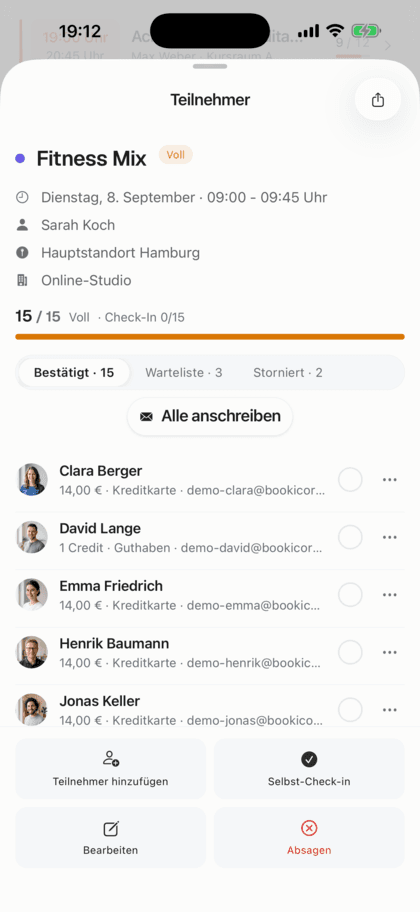
You book members and new guests in yourself, choose payment method and price and see right away if there's still room. Booking, confirmation and receipt are created just like with an online booking.
- Included in every plan, even the Free plan
- Pay on site, by bank transfer, PayPal or with credits
- A confirmation prompt before a full session gets overbooked
Updated 25 September 2026
Manual booking at a glance
- included even in the Free plan
- In every plan
- offering, person, payment
- 3 steps
- on site, bank transfer/PayPal, credits
- 3 payment methods
- bookings made by the team
- Confirmed instantly
- commission on your bookings
- 0%
- servers, GDPR-compliant
- Frankfurt
How do I book clients in manually?
Booking clients in manually means your team enters a booking itself, such as for a walk-in at the front desk or after a phone call. In the Bookicorn Manager you choose the offering and session, then the person, and finally the payment method. The booking, spot count and confirmation email are created exactly like with an online booking. If the session is full, Bookicorn asks, and you decide whether to overbook.
- Who it's for
- For studios, schools and instructors whose clients drop by, call or message spontaneously: yoga drop-ins, trial classes, kids through the parent's account.
- What you get
- Booking in three steps, open spots at a glance, payment method and price to choose, a prompt before overbooking and cancellation by the team.
- What it costs
- Manual booking is included in every plan, even the Free plan for €0. New guests and companions need the Guest Booking and Group Booking add-ons.
Spontaneous participants end up on a scrap of paper instead of in the system?
- Is there still a spot tonight? I'll just stop by.
- Can I pay cash? I don't have a card with me.
- Can you put my daughter on the list too?
Anyone who drops by or calls ends up on a note. Later you add everything, count spots by hand and hope nobody is on the list twice.
You book directly in the Manager, see the open spots and choose the payment method. The person appears in the participant list right away, and the confirmation goes out if you like.
How to book a client in
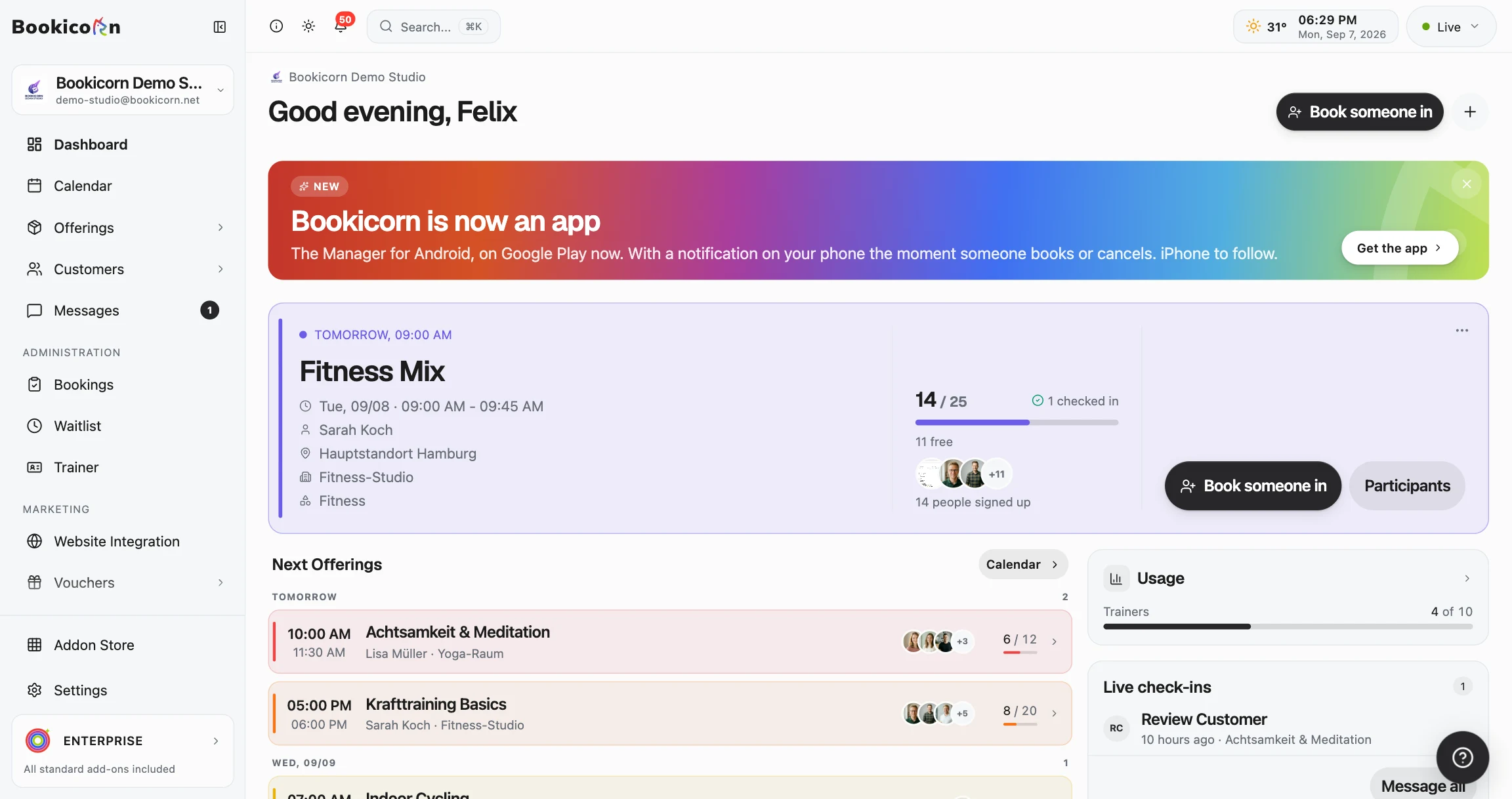
You start from the dashboard, the calendar, a session or a client. If you come from a session, choosing the offering is skipped.
- 1
Choose offering and session
Find the offering and tap the session. The open spots are right next to it, and a full session is marked as overbookable.
- 2
Choose the person
Search by name or email or add a new guest. With the Group Booking add-on, you book companions or a child along with them.
- 3
Set the payment
Choose on site, bank transfer/PayPal or credits, adjust the price if needed and decide whether the confirmation email goes out.
- 4
Book in, even when it's full
If the session has filled up in the meantime, Bookicorn shows the occupancy and asks. You decide whether to book in anyway and overbook the session.
What manual booking can do
From a drop-in to a booking for a child: all in the same sheet, in the browser and in the Manager app.
All featuresMembers and new guests
Search by name or email, with the most recently booked clients at the top. You add new guests with name and email (Guest Booking add-on). If the email already belongs to a client, the booking is assigned to them.
Payment method and price
Collected on site, by bank transfer or PayPal, or with the client's credits. You adjust the price if needed, and the standard price stays visible next to it. 0 means free.
A prompt before overbooking
If the session is full, Bookicorn shows the occupancy and asks. You can still book in, and the session is then deliberately overbooked. Anyone already booked isn't booked twice.
Preferred time for appointments
Choose from the open times or set your own under “Other time”, even outside your opening hours. A booked instructor, full spots and blocks stay blocked.
Companions and kids
With the Group Booking add-on, you book companions along, each with their own price, or add them to an existing booking. You book a child through the parent's account, which pays and gets the email.
Blocks in full or individually
With the Block courses add-on, you book the whole block or a single session from it at a prorated price. If the block is already running, only the remaining sessions are booked.
Confirmation and invoice
The confirmation email is preselected and can be turned off. With the Invoicing System add-on, an amount over 0 creates an invoice with status pending, even without an email.
Cancellation by the team
Cancel with a reason and an email if you like. You refund online payments automatically, and you record cash and bank transfer payments as a manual refund. Credits used are returned.
Also included
- Book in from the dashboard, the calendar, a session or the client view
- Open spots per session visible right when choosing
- Bookings made by the team are confirmed instantly
- Booking window and booking cutoff only apply to clients, not your team
- Billing address is requested when an invoice is created
- Cancellation invoice automatically when an invoice exists
- After a cancellation, the waitlist moves up automatically (Waitlist add-on)
- Instructors only book in and cancel if you allow them to
- Rebook to another session with the Rebooking add-on
Start for free, no demo call
Create your account and set everything up in a few minutes. The Free plan stays free forever, and for 14 days you can also try every feature.
- Start right away, no demo call
- No credit card needed
- Cancel monthly
 BookicornFree plan
How studios use manual booking
Four typical setups from different industries.
Drop-in before class
Anyone who drops by is booked in before class and pays cash. If the class is full, you decide whether one more mat fits.
- Payment method
- On site
- Price
- $18
- Confirmation
- by email
Child through the parent's account
A mother calls. The team books her daughter in through her account, the mother pays by bank transfer and gets the confirmation.
- Add-on
- Group Booking
- Participant
- Daughter
- Payment method
- Bank transfer
Appointment after hours
A regular client gets 7:30 PM even though the practice closes at 6 PM. She pays with her 10-class pack.
- Offering
- appointments
- Time
- Other time, 7:30 PM
- Payment method
- Credits
Joining a block late
A participant joins in week three. The team books the running block, only the remaining sessions are booked, and the price is set to match.
- Add-on
- Block courses
- Scope
- Complete block
- Price
- adjusted
What others use together with manual booking
Core features are included in every plan, add-ons you turn on when you need them.
Guest Booking
Clients book without an account or login, name and email are enough. Allow it per offering or switch your whole studio to guest-only booking.
Learn moreGroup Booking
Your clients book for several people in one go or for someone else. You decide whether companions cost extra.
Learn moreBooking rules and cancellation policy
Set the booking window, booking cutoff, cancellation deadline and payment methods for each offering. Bookicorn applies them to every booking.
Learn moreAttendance tracking
A participant list for every session, as a PDF to check off at the door or as a CSV for spreadsheets. Check off digitally with the Digital Attendance add-on.
Learn moreCancel and reschedule sessions
Cancel sessions or whole series with a reason, or reschedule them. Bookings, refunds and emails to your clients run automatically.
Learn moreClass packs
Sell 10-class packs and other class packs online. Bookicorn deducts credits with every booking and shows your clients their balance.
Learn moreFrequently asked questions about manual booking
Answered briefly. The first sentence is always the answer.
Can't find your question?
Write to usYes, with the Guest Booking add-on. You enter first and last name and email, and phone is optional. If the email already belongs to a client, Bookicorn assigns the booking to them, so no duplicate entry is created. Without the add-on, you book in clients who are already in your client list.
Still have questions about manual booking?
Write to us in two minutes. You get a personal reply from people, not from a bot, and we tell you honestly whether Bookicorn is right for you.

Hi, I'm Daniel. Tell me briefly what you offer, and I'll tell you how to set it up in Bookicorn.
Daniel Haenle · replies personally

Ready to book clients in right in the Manager?
Create your account and book your first client in yourself. Manual booking is included in every plan, the Free plan stays free, and you don't need a credit card.
- 14 days of every feature
- No credit card
- 0% commission
- No minimum term
Ready to go in minutes
- Create your account
- Add your first offering
- 3Share your booking page