




Online class schedule: week, day, list or tiles
Show your sessions the way your clients look for them: as a weekly calendar, daily schedule, session list or offering tiles. Every session can be booked right away.
- Free plan, free forever
- No demo call, start right away
- No credit card
Updated 25 September 2026
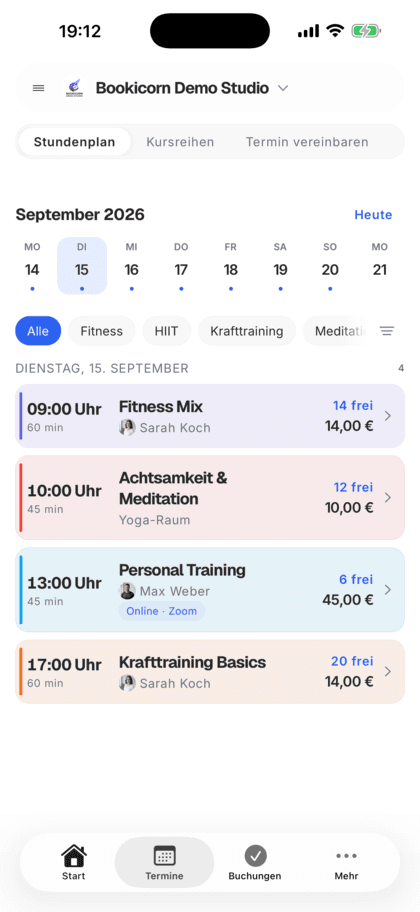
Class schedule views at a glance
- for sessions and offerings
- 6 blocks
- in the client portal and the app
- Day, week, month
- category, instructor, time of day, location
- Filters
- included even in the Free plan
- In every plan
- for you and your clients
- 7 languages
Which class schedule views are there?
You show your class schedule on your booking page as a weekly calendar, daily schedule, chronological session list, a strip of upcoming sessions, or as offerings in tiles or a list. In Bookicorn, each view is its own block that you place and narrow down by category, instructor or individual offerings. In the client portal and the client app, your clients see their schedule by day, week or month.
- Who it's for
- For studios and schools with a full weekly schedule: yoga, fitness, dance, music, sports, creative classes, and anyone who wants to show several areas or instructors.
- What you get
- Six blocks for the booking page, filters per block, a search and filter bar for clients, and a schedule with day, week and month in the client portal.
- What it costs
- Class schedule views are included in every plan, even the Free plan for €0. For your own website you need the Website Integration add-on.
A PDF schedule that's never quite right?
- Is Pilates on Thursday happening this week?
- Is there anything on Saturday morning?
- Which classes does Julia teach?
The schedule sits on your website as a PDF or in your story as an image. Every cancellation and every new session means exporting again, uploading again, and everyone still asks.
The class schedule on your booking page comes straight from your sessions. Clients filter by day, category or instructor, see open spots and book with one tap.
The right class schedule in three steps
You put the views together once, and after that the schedule updates with every session you create or cancel.
- 1
Pick blocks
Place the views you need on your booking page: weekly calendar, daily schedule, session list or offerings as tiles or a list.
- 2
Narrow down the content
Each block shows everything or only certain categories, people or offerings, such as a weekly calendar just for kids.
- 3
Clients find their session
Clients search, filter and hide full sessions. In the client portal and the client app, they switch between day, week and month.
What class schedule views can do
Six blocks for your booking page and a schedule in the client portal, all from the same sessions.
All featuresWeekly calendar
Seven days in a grid. Clients flip to the previous and next week and jump back to today with one tap.
Daily schedule and upcoming sessions
The daily schedule shows everything happening today. The strip of upcoming sessions fits at the top of the page, right below the header.
Session list
All upcoming sessions in chronological order, limited to a fixed number if you like.
Offerings as tiles or a list
Your offerings as a grid or compact list, grouped by location. You sort the grid by date, name or popularity.
A view per instructor or area
You narrow each block down to categories, people or individual offerings. That way every instructor or every area gets its own schedule.
Search and filter
On the booking page, clients search for offerings, filter by category, offering type and location, sort and show only sessions with open spots.
Schedule in the client portal
In the client portal and the client app, clients see the schedule by day, week or month and filter by category, instructor, time of day, location, favorites and online.
On your website too
With the Website Integration add-on, you embed the class schedule as a week or month on your own website, with filters for your visitors.
Also included
- Combine several blocks on one page
- Open spots shown right on the session
- Favorites button so clients can save offerings
- Series and appointment booking as separate views in the client portal, as soon as you have such offerings
- On the phone, a day view with a week strip and a month you can show
- Every session opens the booking directly
Start for free, no demo call
Create your account and set everything up in a few minutes. The Free plan stays free forever, and for 14 days you can also try every feature.
- Start right away, no demo call
- No credit card needed
- Cancel monthly
 BookicornFree plan
What your class schedule looks like
Four typical setups. Each one is built from blocks you arrange on your booking page.
Yoga studio
The weekly calendar with all classes at the top, the offerings as tiles to browse below.
- Block 1
- Weekly calendar
- Block 2
- Offerings grid
- Filter
- all categories
Dance school
Two weekly calendars one below the other: one for kids, one for adults.
- Calendar 1
- Category Kids
- Calendar 2
- Category Adults
Fitness studio
For drop-in guests, the daily schedule sits at the very top, with the week's session list below.
- Block 1
- Daily schedule
- Block 2
- Session schedule
- Number
- 10 sessions
Music school
A separate list of offerings for each teacher, so parents book directly with the right teacher.
- Block
- Offerings list
- Filter
- by person
What others use together with class schedule views
Core features are included in every plan, add-ons you turn on when you need them.
Booking website builder
Build your booking page from almost 30 blocks in the builder, in rows with up to four columns, with a preview for desktop, tablet and phone.
Learn moreDesigning offerings
Give every offering a description, cover image, gallery, color, categories, difficulty level and notes. With its own address, link and QR code.
Learn moreWebsite Integration
Embed your class schedule, upcoming sessions, prices and team as a widget in your existing website, with a code snippet for WordPress, Wix and more.
Learn moreClient portal
Your studio's client portal: book and cancel sessions, buy credits, manage subscriptions, download invoices. In the browser and in the client app.
Learn moreClass and appointment scheduling
Single sessions, recurring series and appointments in one system, plus session blocks and rentals as add-ons. With the same payment methods and booking rules.
Learn moreAvailable spots display
Your clients see how many spots are left for every session, on the booking page and in the client app. Sessions filling up or full are clearly marked.
Learn moreFrequently asked questions about class schedule views
Answered briefly. The first sentence is always the answer.
Can't find your question?
Write to usOn the booking page there's a weekly calendar, daily schedule, session list, the strip of upcoming sessions and offerings as tiles or a list. The client portal and the client app add the schedule by day, week or month.
Still have questions about class schedule views?
Write to us in two minutes. You get a personal reply from people, not from a bot, and we tell you honestly whether Bookicorn is right for you.

Hi, I'm Daniel. Tell me briefly what you offer, and I'll tell you how to set it up in Bookicorn.
Daniel Haenle · replies personally

Ready to show your class schedule online?
Create your account, add your sessions and put the weekly calendar on your booking page. The Free plan stays free, and you don't need a credit card.
- 14 days of every feature
- No credit card
- 0% commission
- No minimum term
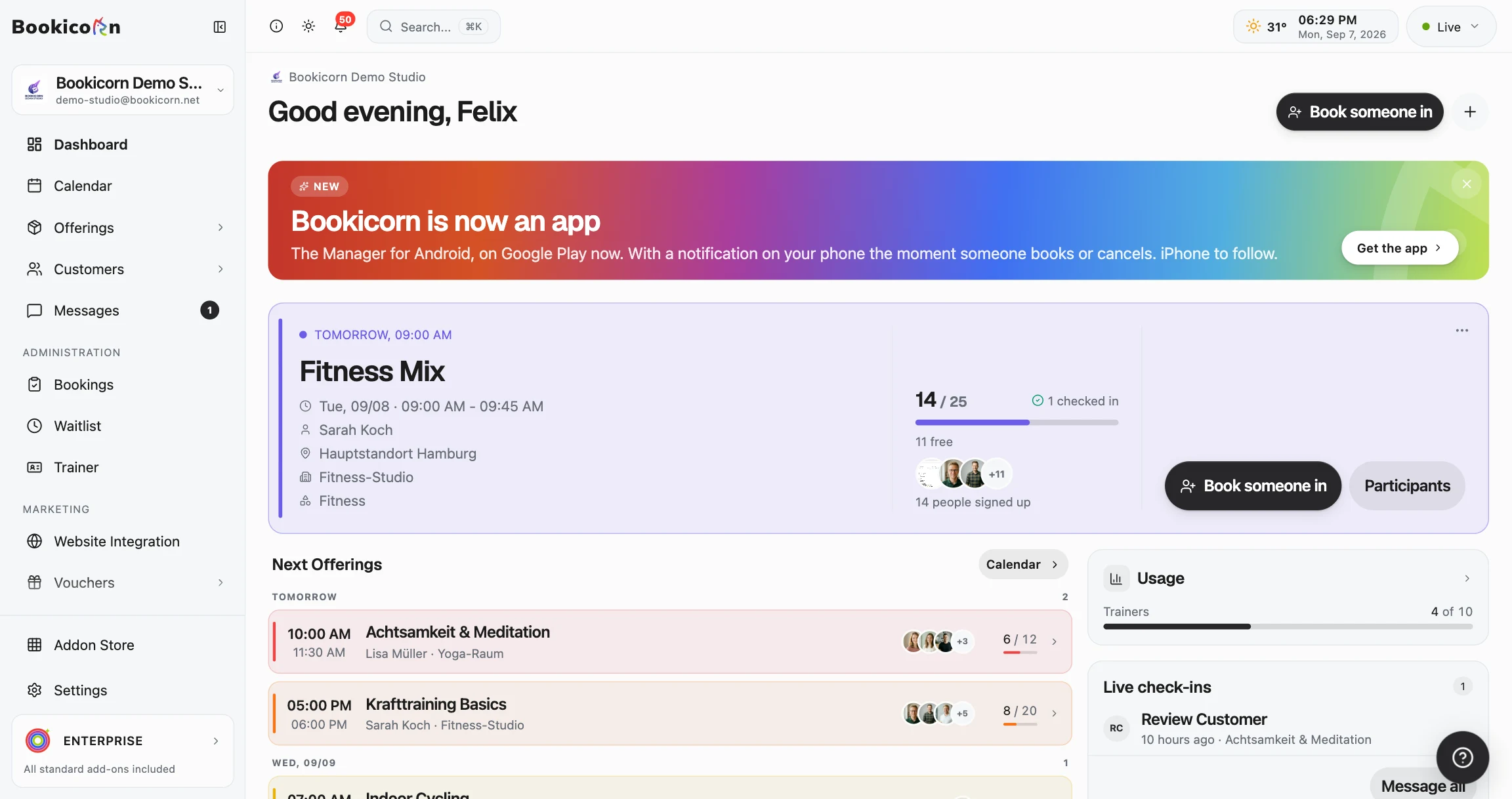
Ready to go in minutes
- Create your account
- Add your first offering
- 3Share your booking page