




Cancellation policy and booking rules: set precisely per offering
Set for each offering how early clients can book, when booking closes, until when they can cancel for free and which payment methods apply. Bookicorn checks this with every booking.
- Free plan, free forever
- No demo call, start right away
- No credit card
Updated 25 September 2026
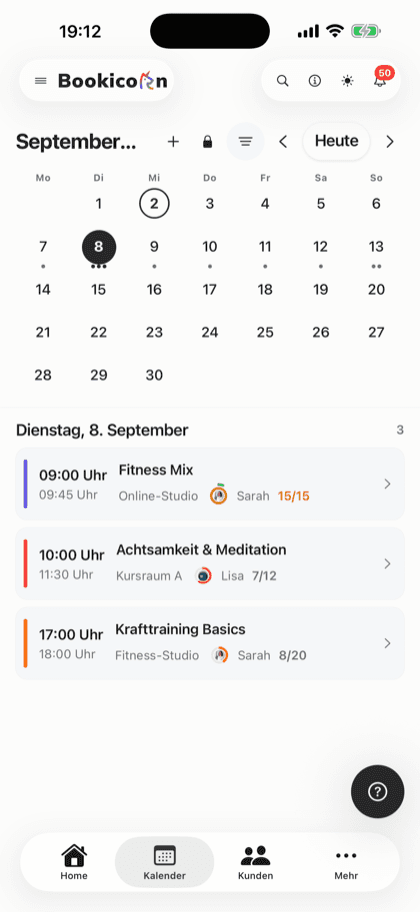
Booking rules at a glance
- included even in the Free plan
- In every plan
- separate rules for every offering
- Per offering
- for booking window and cancellation deadline
- Hours to months
- for the booking cutoff
- Minutes to days
- combinable per offering
- Payment methods
- commission on your bookings
- 0%
What are booking rules and a cancellation policy?
Booking rules define from when and until when your clients can book and cancel an offering and how they pay: booking window, booking cutoff, cancellation deadline and payment methods. In Bookicorn, you set them for each offering individually, in minutes, hours, days, weeks or months. Bookicorn checks the rules with every booking, and with online payment even before the client pays.
- Who it's for
- For anyone who wants predictable spots: sessions that need preparation, workshops with materials to buy, one-on-one appointments at fixed times or offerings that can't be rescheduled at short notice.
- What you get
- Booking window and booking cutoff per offering, a cancellation deadline your clients can see, payment methods per offering and automatic refunds for cancellations within the deadline.
- What it costs
- Booking rules and the cancellation deadline are core features and included in every plan, even the Free plan for €0. You pay 0% commission on your bookings.
Bookings two months out, cancellations five minutes before?
- Can I already book the sessions in December?
- I can't make it today after all, sorry for the late cancellation!
- Do I get my money back if I cancel?
Without clear rules, you decide every case on its own: who books too early, who cancels too late, who gets their money back. Your clients don't know the rules, and you keep explaining them.
Your rules are shown on the offering and in the booking confirmation. Bookicorn only allows what they permit and refunds automatically for cancellations within the deadline.
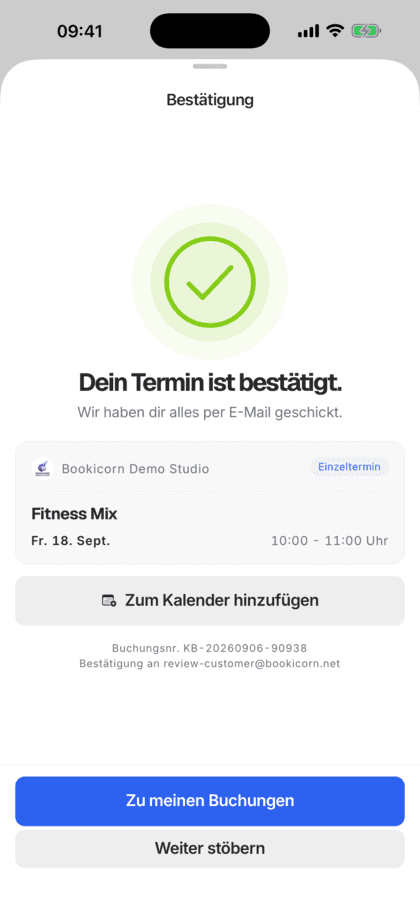
How to set up booking rules
Everything lives right in the offering. You change the rules at any time, and they then apply to all further bookings.
- 1
Set the booking period
Decide how far in advance clients can book and when booking closes, for example at most 30 days ahead and no later than 2 hours before the start.
- 2
Choose the cancellation deadline
Decide until when your clients can cancel on their own, or allow it without a deadline until the start. Clients see the deadline when booking and in the confirmation.
- 3
Pick payment methods
Combine online payment, PayPal, bank transfer, cash on site and credits, or make the offering free. Your clients only see what you allow when they book.
What booking rules and cancellation can do
From a workshop that closes two days ahead to a class that stays bookable until just before it starts.
All featuresBooking window
Decide how far in advance clients can book, in hours, days, weeks or months. Sessions outside the window are already visible and become bookable as soon as it opens.
Booking cutoff
Close booking shortly before the start, in minutes, hours or days. Sessions past the cutoff disappear from the public list.
Cancellation deadline
Until the deadline, your clients cancel on their own in the client portal or the client app, and after that they can't. Without a deadline, they can cancel until the start. For blocks, the deadline counts from the first session.
Refunds on cancellation
If your client cancels within the deadline, their credits come back and card or PayPal payments are refunded automatically. If they paid in cash or by bank transfer, you get a task to refund the amount yourself.
Payment methods per offering
Online payment through Stripe, PayPal, bank transfer, cash on site and credits, on their own or combined, or the offering is free. Payment methods that aren't set up yet appear in the form with the way to set them up.
Checked before payment
Bookicorn checks the booking window and booking cutoff before the online payment. That way nobody pays for a session that can no longer be booked.
Your team has leeway
In the Manager, your team books clients in outside the booking window and cutoff too and cancels even after the deadline, choosing the refund.
Also included
- Deadline visible on the offering and in the confirmation email
- Clients see what they get back before they cancel
- Optional message to the studio when canceling
- Booking confirmed right away or only after your approval
- Price as an amount and in credits per offering
- Waitlist moves up with every cancellation, with the Waitlist add-on
- Rebook until the cancellation deadline with the Rebooking add-on
Start for free, no demo call
Create your account and set everything up in a few minutes. The Free plan stays free forever, and for 14 days you can also try every feature.
- Start right away, no demo call
- No credit card needed
- Cancel monthly
 BookicornFree plan
How studios set up their booking rules
Four typical setups from different industries.
Yoga studio
Weekly classes, booked at most two weeks in advance, canceled up to 12 hours before.
- Booking window
- 14 days
- Booking cutoff
- 1 hour
- Cancellation deadline
- 12 hours
Cooking school
Ingredients are bought ahead. Booking closes two days before, free cancellation up to one week before.
- Booking cutoff
- 2 days
- Cancellation deadline
- 1 week
- Payment
- online
Personal training
One-on-one sessions bookable until shortly before, cancellations up to the day before.
- Booking cutoff
- 30 minutes
- Cancellation deadline
- 24 hours
- Payment
- online or on site
Language school
Multi-week offerings with registration well in advance, paid by bank transfer.
- Booking window
- 3 months
- Cancellation deadline
- 2 weeks
- Payment
- Bank transfer
What others use together with booking rules
Core features are included in every plan, add-ons you turn on when you need them.
Rebooking
Clients and your team move a booking to another session without canceling and booking again. The payment moves along, and the waitlist moves up.
Learn moreWaitlist
When a session is full, clients join the waitlist and move up automatically as soon as someone cancels. With a payment deadline or booked right away.
Learn moreRefunds
When you cancel a booking, Bookicorn refunds online payments automatically through Stripe or PayPal and returns credits. Cash payments become a reminder.
Learn moreBooking approval
You decide per offering: bookings are confirmed right away or come in as requests you approve. With a deadline and reminder so none get left behind.
Learn moreOnline payments with Stripe
Your clients pay online when booking by card, Apple Pay, Google Pay, Klarna and more. The money goes directly to you through Stripe, with no commission.
Learn moreClass packs
Sell 10-class packs and other class packs online. Bookicorn deducts credits with every booking and shows your clients their balance.
Learn moreFrequently asked questions about booking rules and cancellation
Answered briefly. The first sentence is always the answer.
Can't find your question?
Write to usYes. You set the booking window, booking cutoff, cancellation deadline and payment methods for each offering individually.
Still have questions about booking rules and cancellation?
Write to us in two minutes. You get a personal reply from people, not from a bot, and we tell you honestly whether Bookicorn is right for you.

Hi, I'm Daniel. Tell me briefly what you offer, and I'll tell you how to set it up in Bookicorn.
Daniel Haenle · replies personally

Ready to set your booking rules?
Create your account in a few minutes, set the booking window, booking cutoff and cancellation deadline on your first offering and pick the payment methods. The Free plan stays free, and you don't need a credit card.
- 14 days of every feature
- No credit card
- 0% commission
- No minimum term
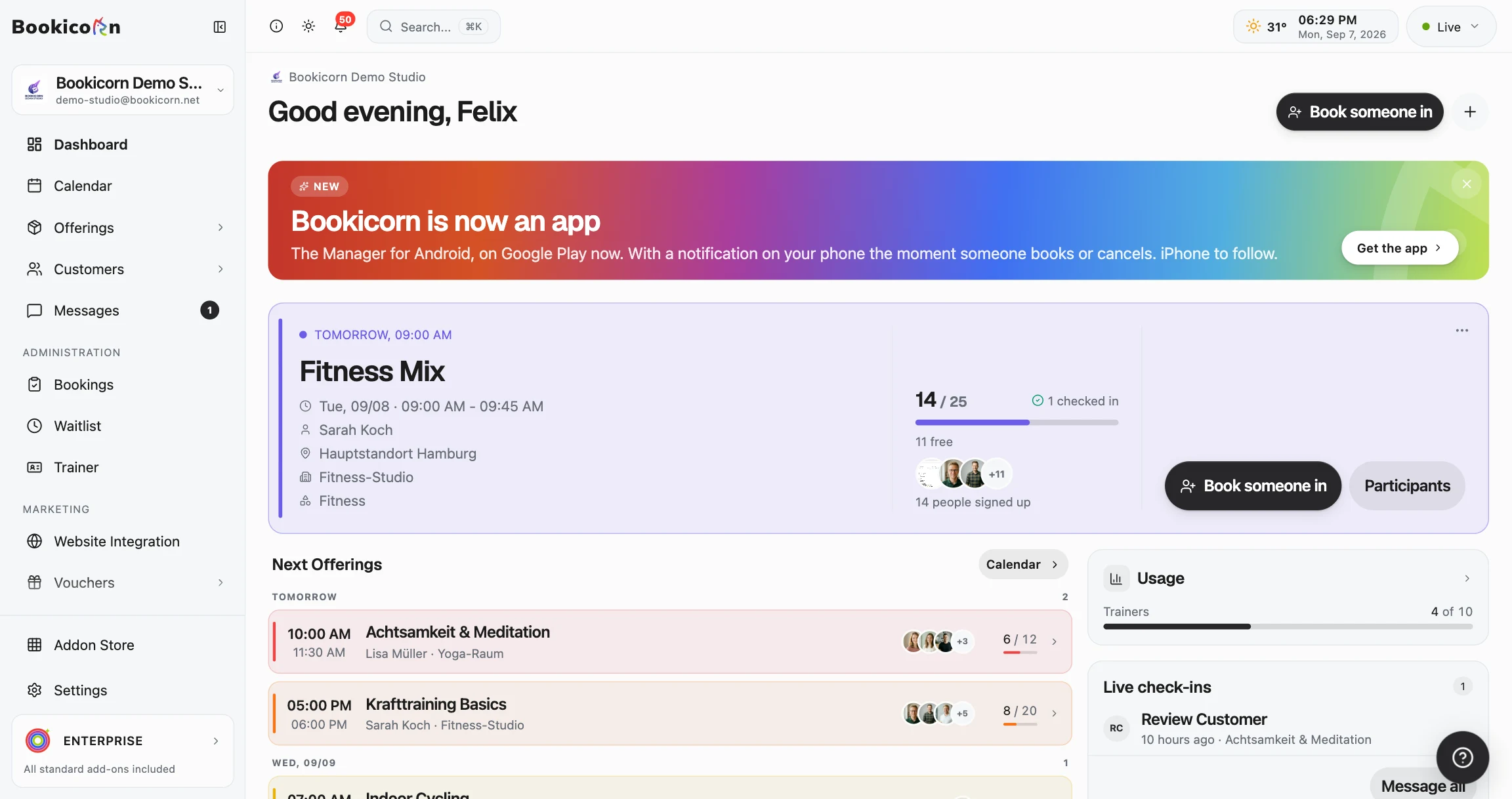
Ready to go in minutes
- Create your account
- Add your first offering
- 3Share your booking page