




Class listings: images, categories and notes
Give every offering a description, cover image, gallery, color, categories and difficulty level. Your clients see at a glance what to expect and find the right fit with filters.
- Free plan, free forever
- No demo call, start right away
- No credit card
Updated 25 September 2026
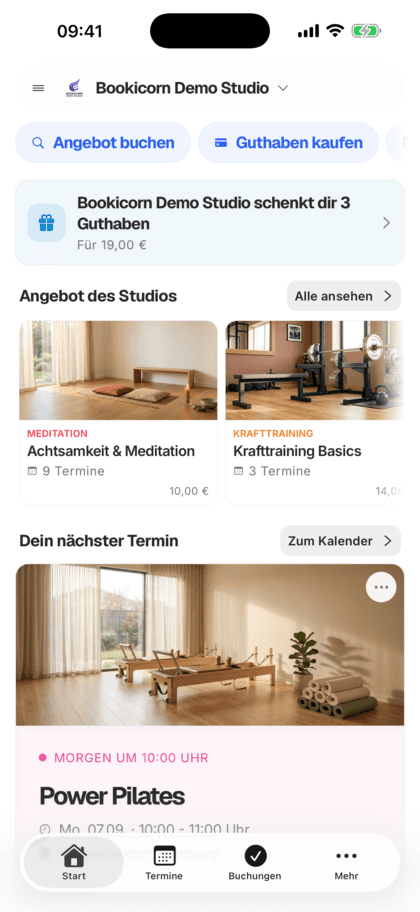
Designing offerings at a glance
- gallery per offering
- 20 images
- for offerings and categories
- Colors
- per offering, with link and QR code
- Own address
- switchable per offering
- Public/private
- included even in the Free plan
- In every plan
How do you design an offering?
You design an offering with a description, cover image, a gallery of up to 20 images, color, main and additional categories, difficulty level and notes for participants. In Bookicorn, every offering gets its own address on your booking page, which you share by link or QR code. Status and visibility decide whether clients can see and book it.
- Who it's for
- For anyone with more than a handful of offerings who wants clients to find the right one quickly: studios, schools, practices, clubs.
- What you get
- A presentation with image and gallery, categories and difficulty levels with colors, notes for participants, sharing with a QR code and visibility per offering.
- What it costs
- Everything on this page is included in every plan, even the Free plan for €0. You pay 0% commission on your bookings.
Every new client asks the same three questions?
- Do I need any experience?
- What should I bring to the first session?
- Is this more for beginners or advanced students?
The answers are somewhere on your website or only in your head. Every sign-up brings follow-up questions, and anyone who doesn't ask shows up without a mat.
Requirements, notes, difficulty level and images are right in the offering, and the note for participants is also in the confirmation email.
A finished offering in three steps
Everything lives in the offering itself, in the “For clients” area. You create categories and difficulty levels once and use them everywhere.
- 1
Set the presentation
Write the description, choose a color and upload a cover image. In the gallery you add more images and arrange them.
- 2
Categorize
Choose a main category, additional categories and the difficulty level. Your clients then filter by them.
- 3
Share
Every offering has its own address. Copy the link, share it directly or save the QR code for posters and flyers.
What you can design on an offering
From the cover image to a note on what clients should bring: everything that answers questions before the first session.
All featuresDescription, cover image and color
Text and image appear on the offering page. The color marks the offering in your calendar, so you spot it among all the others.
Gallery with up to 20 images
Show rooms, materials or results. You set the order, and clients flip through the images on the offering page. You can already upload while creating it.
Categories with colors
Every offering has a main category and as many additional ones as you like. Categories with name, description, color and order, and if one is missing, you create it right from the offering.
Difficulty levels
Your own levels such as beginner or advanced, with color and order. The level appears at the top of the offering page. If you don't need them, you turn them off studio-wide.
Requirements and notes
What prior experience is needed and what participants should bring. Both appear in the offering, and the note for participants also in the confirmation email.
Own address, link and QR code
Every offering has its own address based on its title. Share it as a link or QR code. When you share a session, that session is already selected.
Status and visibility
Two toggles: Inactive takes an offering out of service entirely. Private hides it on the booking page and locks it for clients, while your team can still book people in.
Health notes per participant
What you record on the client, such as allergies or injuries, appears in the participant list of every session. Instructors only see it if you allow them to.
Also included
- Your own terms, such as workshop instead of class or teacher instead of trainer
- Categories as filters on the booking page and in the client app
- Duplicate an offering and change only what's needed
- Deactivate categories and difficulty levels without deleting them
- Design applies to fixed sessions, appointments, blocks and rental periods
Start for free, no demo call
Create your account and set everything up in a few minutes. The Free plan stays free forever, and for 14 days you can also try every feature.
- Start right away, no demo call
- No credit card needed
- Cancel monthly
 BookicornFree plan
What designed offerings look like
Four typical setups. The examples show what clients see in the offering.
Yoga studio
Clear sorting by style and level so newcomers don't end up in the wrong class.
- Category
- Hatha, relaxation
- Level
- Beginner
- Bring
- Mat, blanket
Pottery studio
The gallery shows what was made in earlier sessions.
- Gallery
- 12 images
- Bring
- Apron, old clothes
- Level
- Beginner
Swimming school
Requirements are in the offering, and the flyer at the pool carries the QR code.
- Requirement
- Basic swim badge
- Share
- QR code on the poster
Corporate class
An offering for just one company: set to private, and the studio books the participants in itself.
- Visibility
- Private
- Booking
- by the team
What others use together with designed offerings
Core features are included in every plan, add-ons you turn on when you need them.
Offering page
Every offering gets its own page with its own link: description, sessions with open spots, price, instructor, location and gallery, bookable right there.
Learn moreCustom terminology
Call your studio a practice or school, your team coaches or teachers and your class pack a stamp card: Bookicorn uses your terms everywhere.
Learn moreVisibility control
You decide when your booking page goes live: set it up in peace and look at it with a test link, then open it to everyone and Google with one switch.
Learn moreClass schedule views
Show your sessions as a weekly calendar, daily schedule, session list or offering tiles. Clients filter by category, instructor, time of day and location.
Learn moreBooking website builder
Build your booking page from almost 30 blocks in the builder, in rows with up to four columns, with a preview for desktop, tablet and phone.
Learn moreClass and appointment scheduling
Single sessions, recurring series and appointments in one system, plus session blocks and rentals as add-ons. With the same payment methods and booking rules.
Learn moreFrequently asked questions about designing offerings
Answered briefly. The first sentence is always the answer.
Can't find your question?
Write to usOne cover image and up to 20 images in the gallery. You set the order of the gallery yourself, and clients flip through it on the offering page.
Still have questions about designing offerings?
Write to us in two minutes. You get a personal reply from people, not from a bot, and we tell you honestly whether Bookicorn is right for you.

Hi, I'm Daniel. Tell me briefly what you offer, and I'll tell you how to set it up in Bookicorn.
Daniel Haenle · replies personally

Ready to design your first offering?
Create your account, upload a cover image and categorize your offering. The Free plan stays free, and you don't need a credit card.
- 14 days of every feature
- No credit card
- 0% commission
- No minimum term
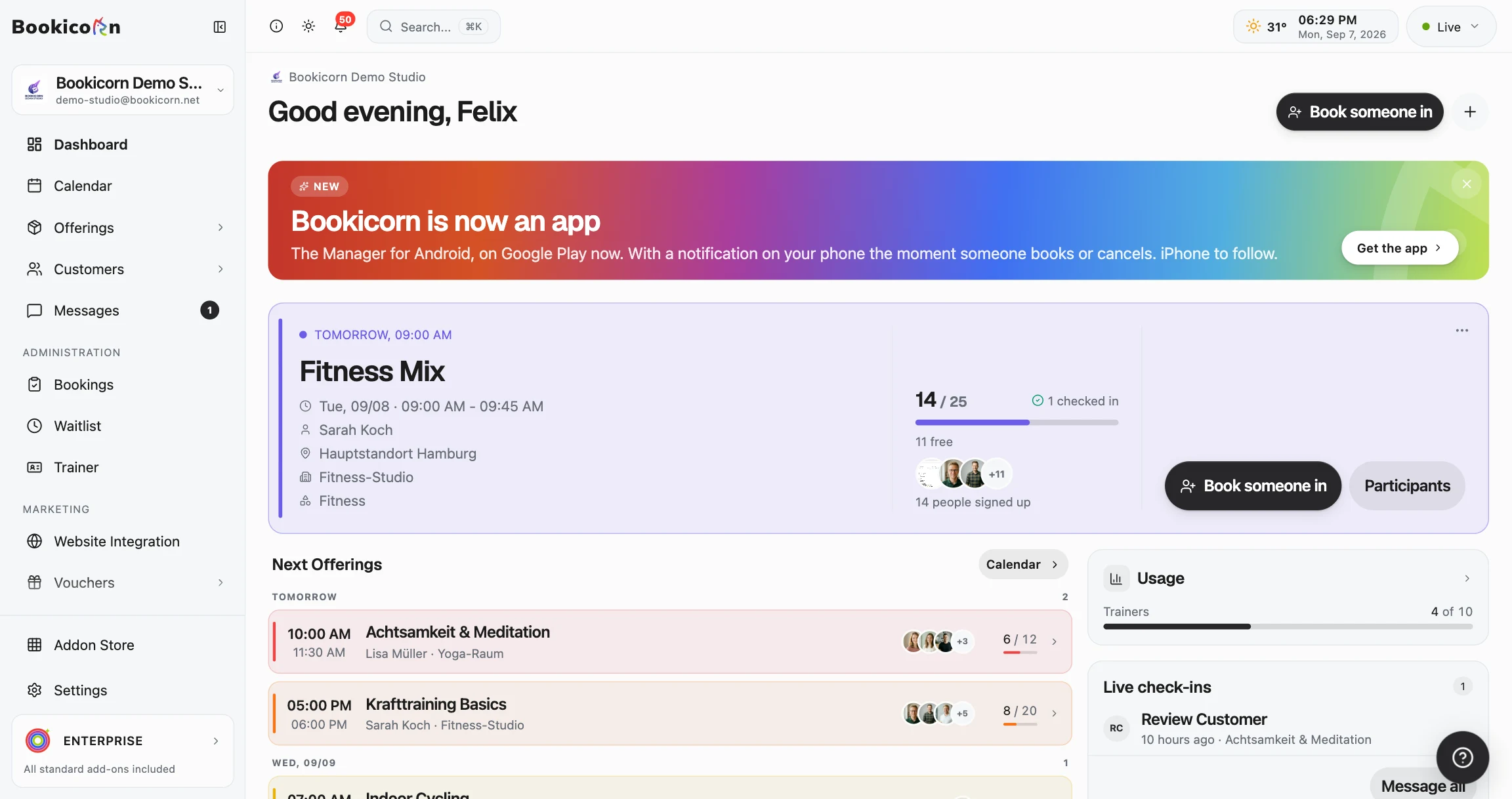
Ready to go in minutes
- Create your account
- Add your first offering
- 3Share your booking page