




Booking terms and conditions: your terms with every booking
Write your terms and conditions in the Manager and publish them as a version. Your clients accept them when booking, buying credits and subscribing, instead of Bookicorn's terms.
- Free plan, free forever
- No demo call, start right away
- No credit card
Updated 25 September 2026
Custom terms at a glance
- for bookings, credits, gift cards and subscriptions
- Instead of platform terms
- every version with number and date
- Versions
- headings, lists, links, preview
- Editor
- invisible until you publish
- Drafts
- off, and the platform terms apply
- One toggle
- takes one add-on slot
- Add-on
What does using your own terms in a booking system mean?
Your own terms in a booking system means your clients agree to your terms and conditions when booking, not the platform's. With the Custom Terms add-on, you write the text in the Manager, publish it as a version, and Bookicorn shows it when booking, when buying credits and gift cards and for credit subscriptions. Without the add-on, Bookicorn's terms apply.
- Who it's for
- For studios, schools and instructors with their own rules on cancellation, credits, liability or house rules who want to agree on these rules at booking.
- What you get
- An editor with preview and drafts, versions with number and date, your terms at every point of purchase and a dedicated terms page on your booking page.
- What it costs
- Custom Terms is an add-on and takes one add-on slot in your plan, even on the Free plan. All add-ons are included in the 14-day trial.
How to get Custom Terms
You turn on Custom Terms in the Add-on Store of your Manager with one tap and can switch it off at any time. It uses one of your plan's add-on slots. Once all slots are taken, you can add it on in the paid plans.
- Without the add-on or with the toggle off, Bookicorn's terms apply
- Applies to bookings, including as a guest, credits, gift cards, subscriptions and joining
- The owner and your studio's admins can edit
- Published versions stay saved, even if the add-on ends
- Free
- 1 slot
- Starter
- 3 slots
- Professional
- 8 slots
- Premium
- all add-ons
Your terms are on your website, but booking happens elsewhere?
- Where are your cancellation terms, actually?
- None of that was mentioned when I booked.
- Do your terms also apply to the 10-class pack?
Your terms live on your website, but when booking, clients agree to the platform's conditions. If there's a dispute about a cancellation, it's unclear what was agreed.
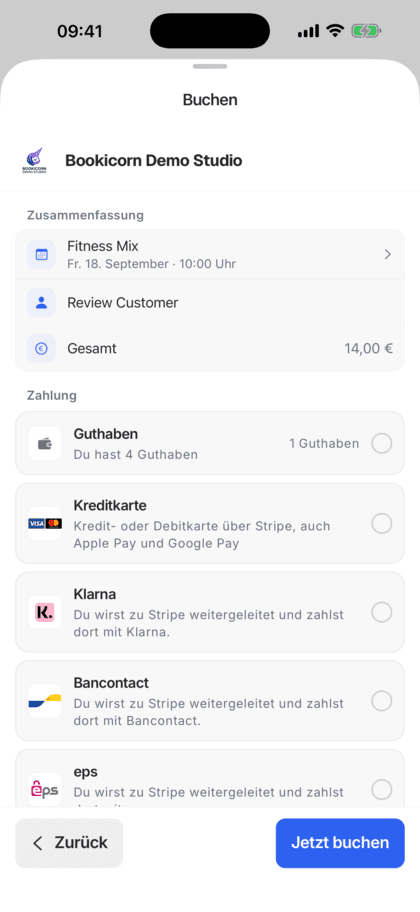
Your clients check off your terms when booking and open them with one tap. Every published version is kept with its number and date.
Your terms in three steps
You write them once, and after that you only change them when something changes. Every change becomes a new version.
- 1
Write the text
In the Custom Terms add-on you write your text or paste it in, with headings, lists and links. The preview shows how your clients see it.
- 2
Publish as a version
When you publish, the text becomes the new version and applies right away to new bookings. Before that you save drafts that clients don't see.
- 3
Clients accept
When booking, your clients check the box for your terms and open the text with one tap. Without the check, the booking can't be completed.
What the Custom Terms add-on can do
From the first draft to acceptance at booking: everything in the Manager, no second tool.
All featuresEditor with preview
Headings in three levels, bold, italic, underline, bullet lists, numbered lists, alignment and links. You write from scratch or paste in your existing text.
Versions with number and date
Every publication becomes a new version. Earlier versions stay saved, so it's clear which one applied to a booking. If the text hasn't changed, no new version is created.
Drafts
Save changes as a draft and keep working later. Your clients see the published version until you publish or discard the draft.
Acceptance at every point of purchase
Your clients confirm your terms when booking, including as a guest, for appointments, when buying credits and gift cards, for credit subscriptions and when joining by invitation.
Terms page on your booking page
The Terms link in the footer of your booking page leads to your text, with version number and date.
Terms overview for clients
In the client portal under Settings, your clients find the terms of their studios with version and date, next to Bookicorn's terms.
Record in the client app
When a client books in the client app, Bookicorn saves which version they agreed to, with a timestamp. They see the date later in their terms overview.
One toggle to switch back
If you turn off Custom Terms or the add-on ends, Bookicorn's terms apply again. Your versions stay saved.
Also included
- Publishing only from 50 characters of text
- Character counter in the editor
- Edit in the Manager on the web, iOS and Android
- Only the owner and your studio's admins change the terms
- A note if your terms are in a different language
- The privacy policy stays linked next to your terms
- Also at sign-up in the client app
Start for free, no demo call
Create your account and set everything up in a few minutes. The Free plan stays free forever, and for 14 days you can also try every feature.
- Start right away, no demo call
- No credit card needed
- Cancel monthly
 BookicornFree plan
Platform terms or your own terms?
Both run without any extra effort. The difference is whose conditions your clients accept.
| Question | Platform termsIncluded in every plan | Custom TermsAdd-onThis page |
|---|---|---|
| Which text applies at booking? | Bookicorn's terms | Your own text |
| Who maintains the text? | Bookicorn | You, in the Manager |
| Terms page on your booking page | Note pointing to Bookicorn's terms | Your text with version and date |
| Versions | None of your own | Every version with number and date |
| What you need | Nothing, in every plan | The Custom Terms add-on |
What others use together with custom terms
Core features are included in every plan, add-ons you turn on when you need them.
Booking rules and cancellation policy
Set the booking window, booking cutoff, cancellation deadline and payment methods for each offering. Bookicorn applies them to every booking.
Learn moreGDPR and data protection
Servers in Frankfurt, a data processing agreement at sign-up, account deletion by clients and legal pages on your booking page. In every plan.
Learn moreGuest Booking
Clients book without an account or login, name and email are enough. Allow it per offering or switch your whole studio to guest-only booking.
Learn moreCredit Subscriptions
Sell credits as a subscription: your clients pay monthly or yearly through Stripe or PayPal, and new credits arrive automatically with every payment.
Learn moreGift cards
Sell gift cards online, send them as a PDF by email and redeem them at booking. Plus discount codes and code batches for partners.
Learn moreClient portal
Your studio's client portal: book and cancel sessions, buy credits, manage subscriptions, download invoices. In the browser and in the client app.
Learn moreFrequently asked questions about custom terms
Answered briefly. The first sentence is always the answer.
Can't find your question?
Write to usYes, with the Custom Terms add-on. You write the text in the Manager, publish it as a version, and your clients accept it when booking instead of Bookicorn's terms.
Still have questions about custom terms?
Write to us in two minutes. You get a personal reply from people, not from a bot, and we tell you honestly whether Bookicorn is right for you.

Hi, I'm Daniel. Tell me briefly what you offer, and I'll tell you how to set it up in Bookicorn.
Daniel Haenle · replies personally

Ready to take bookings with your own terms?
Create your account, turn on the Custom Terms add-on and publish your first version. All add-ons are included in the trial, and you don't need a credit card.
- 14 days of every feature
- No credit card
- 0% commission
- No minimum term
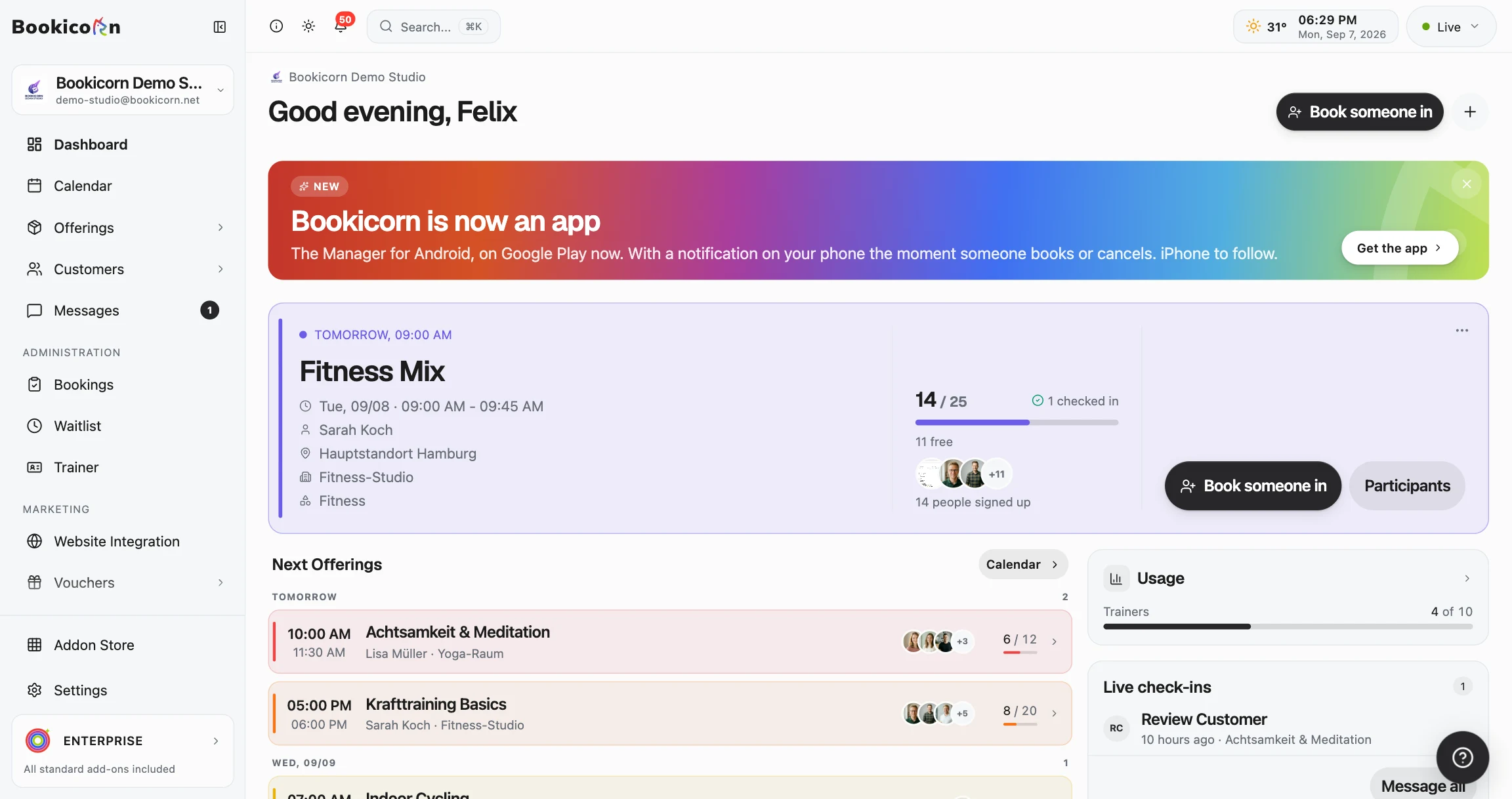
Ready to go in minutes
- Create your account
- Add your first offering
- 3Share your booking page