




Show available spots: your clients see what's still open
On your booking page and in the client app, every session shows how many spots are still open. When it's getting tight, it says “Only 2 left”, and when it's full, “Fully booked”.
- Included in every plan, even the Free plan
- Capacity bar and open spots per session
- Numbers only, no names of other participants
Updated 25 September 2026
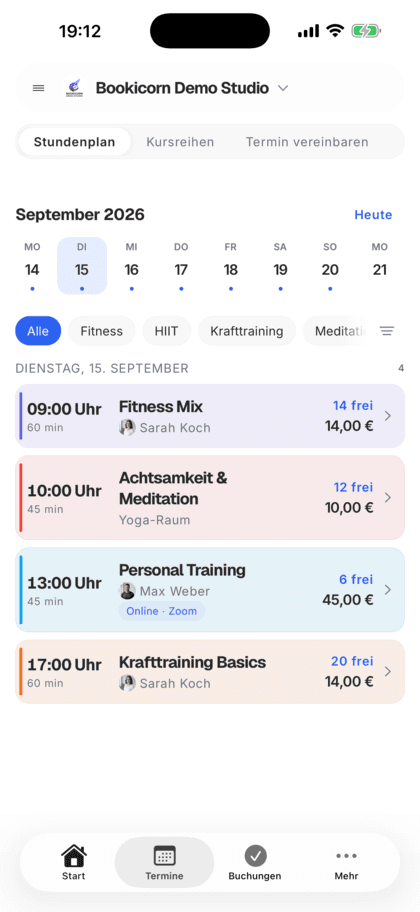
Available spots at a glance
- included even in the Free plan
- In every plan
- for every session with a spot limit
- Automatic
- booking page and client app
- Web and app
- no names of other participants
- Numbers only
- “Only open spots” on the booking page
- Filter
How do I show available spots for my sessions?
Bookicorn shows open spots automatically: on your booking page and in the client app, every session with a spot limit shows how many spots are still open, with a capacity bar on the booking page. When it's getting tight, it says “Only 2 left”, and when the session is full, “Fully booked”. Confirmed bookings and open requests are counted, and only numbers are shown, never names.
- Who it's for
- For all offerings with limited spots: group classes, workshops, kids' and club offerings, series with fixed sessions.
- What you get
- Open spots per session, a capacity bar, a note when spots run low, Fully booked for full sessions, an “Only open spots” filter and occupancy in the Manager.
- What it costs
- The available spots display is included in every plan, even the Free plan for €0. The waitlist for full sessions is the Waitlist add-on.
What the available spots display shows
You only set your offering's number of spots, and Bookicorn counts the rest.
All featuresOpen spots per session
Every session with a spot limit shows how many spots are open, such as “5 spots open”. On the booking page, a bar shows occupancy, for example 7/12.
Low availability highlighted
When only a few spots are left, the note switches to “Only 2 left” in a warning color. In the client app, offering cards say “Only 3 spots left”.
Fully booked and waitlist
When a session is full, it says “Fully booked”. With the Waitlist add-on, clients join the waitlist instead.
“Only open spots” filter
On the booking page, clients hide all full sessions with “Only open spots”. The filter appears as soon as your sessions have a spot limit.
Counted correctly
Confirmed bookings and open requests take a spot, and canceled ones free it up again. Clients only see the number, never the names of others.
In the Manager too
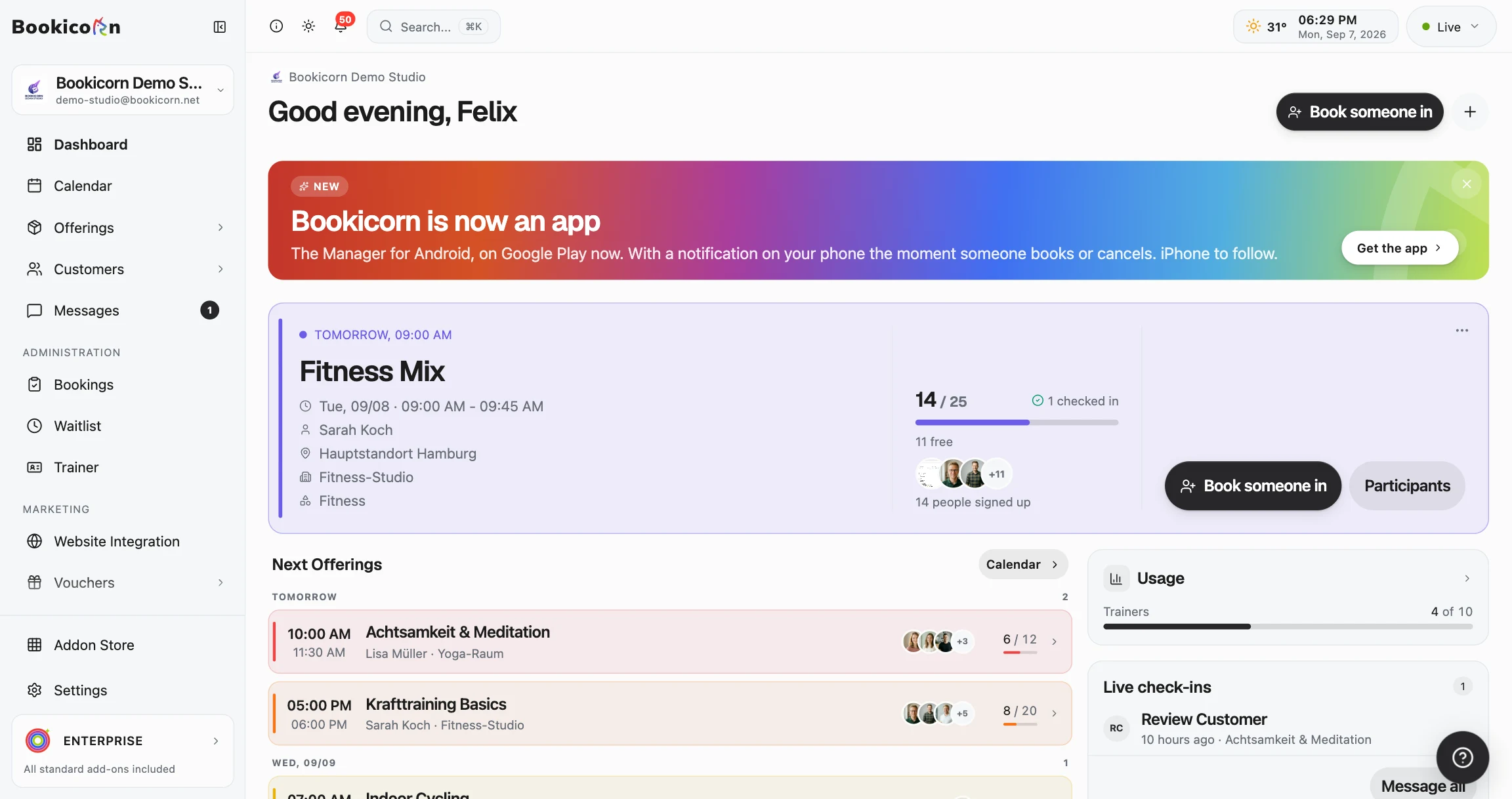
In the session you see booked and spots, such as 9 / 12, plus open spots or Full. When booking someone in, the open spots appear next to every session.
Also included
- Shown in the session list, daily schedule, offering cards and on every offering's page
- In the client app in the schedule, on offering cards and when picking a session
- Own number of spots per session, and the display uses it
- Sessions without a spot limit show no number
- A note when booking for a session hasn't opened yet or has already closed
- Blocks in the client app with “4 left” or “Fully booked” (Block courses add-on)
What others use together with the available spots display
Core features are included in every plan, add-ons you turn on when you need them.
Waitlist
When a session is full, clients join the waitlist and move up automatically as soon as someone cancels. With a payment deadline or booked right away.
Learn moreClass schedule views
Show your sessions as a weekly calendar, daily schedule, session list or offering tiles. Clients filter by category, instructor, time of day and location.
Learn moreBooking website builder
Build your booking page from almost 30 blocks in the builder, in rows with up to four columns, with a preview for desktop, tablet and phone.
Learn moreBooking approval
You decide per offering: bookings are confirmed right away or come in as requests you approve. With a deadline and reminder so none get left behind.
Learn moreManual bookings and walk-ins
Your team books members and new guests in themselves, with payment method, price and a warning before a session gets overbooked.
Learn moreFrequently asked questions about the available spots display
Answered briefly. The first sentence is always the answer.
Can't find your question?
Write to usYes, automatically for every session with a spot limit. The booking page and client app show the number of open spots, “Only 2 left” when spots are running low and “Fully booked” for full sessions.
Still have questions about the available spots display?
Write to us in two minutes. You get a personal reply from people, not from a bot, and we tell you honestly whether Bookicorn is right for you.

Hi, I'm Daniel. Tell me briefly what you offer, and I'll tell you how to set it up in Bookicorn.
Daniel Haenle · replies personally

Show your clients where there's still room
Create your account, enter the number of spots for your offerings, and the open spots appear on your booking page automatically. The Free plan stays free, and you don't need a credit card.
- 14 days of every feature
- No credit card
- 0% commission
- No minimum term
Ready to go in minutes
- Create your account
- Add your first offering
- 3Share your booking page