




Offer online classes: booking and link in one system
Switch an offering to online, choose the platform and add the link. Your clients book as usual and find the link in the confirmation, in the reminder and in their booking.
- Free plan, free forever
- No demo call, start right away
- No credit card
Updated 25 September 2026
Online classes at a glance
- included even in the Free plan
- In every plan
- Zoom, Teams, Meet, Webex or other
- 5 options
- sessions, series, appointments, blocks
- Every offering type
- in confirmation and reminder
- Link by email
- commission on your bookings
- 0%
- for you and your clients
- 7 languages
How do you offer online classes with Bookicorn?
You offer online classes by turning on the “Online offering” toggle in the offering, choosing the platform and entering the meeting link. Instead of location and room, clients then see “Online” on the offering in Bookicorn. After booking, they get the link by email and find it in their booking in the client portal and the client app.
- Who it's for
- For anyone who teaches or advises live by video: online yoga and fitness, tutoring, language classes, coaching, nutrition counseling, continuing education.
- What you get
- An online toggle per offering, platform and link, a label on the booking page, and the link in emails, the client portal, the client app and the calendar entry.
- What it costs
- Online classes are included in every plan, even the Free plan for €0. You pay 0% commission on your bookings.
Quickly sending the Zoom link to everyone again?
- Can you send me the link for tonight again?
- I can't find the email with the access anymore.
- Is it the same link as last week?
Booking runs through one tool, the link through another. Before every session, links go out by hand, and anyone who misplaces the email asks right before it starts.
The link is attached to the offering. Your clients get it with the confirmation and the reminder and always have it at hand in their booking.
Online in three steps
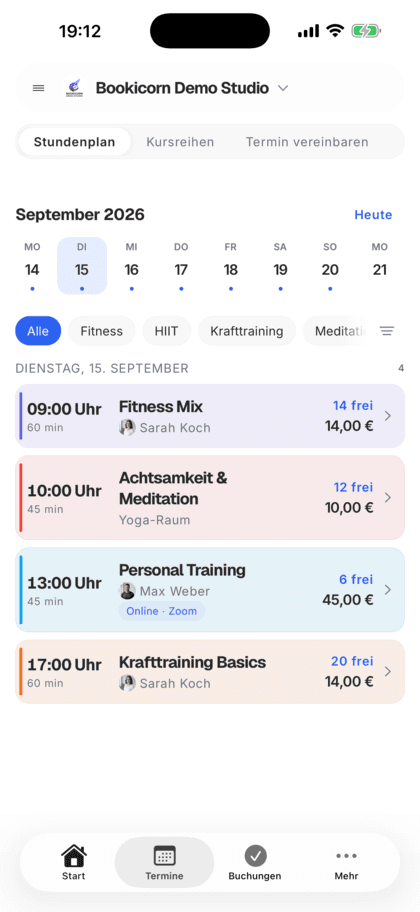
You create an online offering just like any other. Only the location becomes a link.
- 1
Turn on online
In the offering under “Location & instructor”, switch to online, choose the platform and enter the link to your meeting.
- 2
Clients book
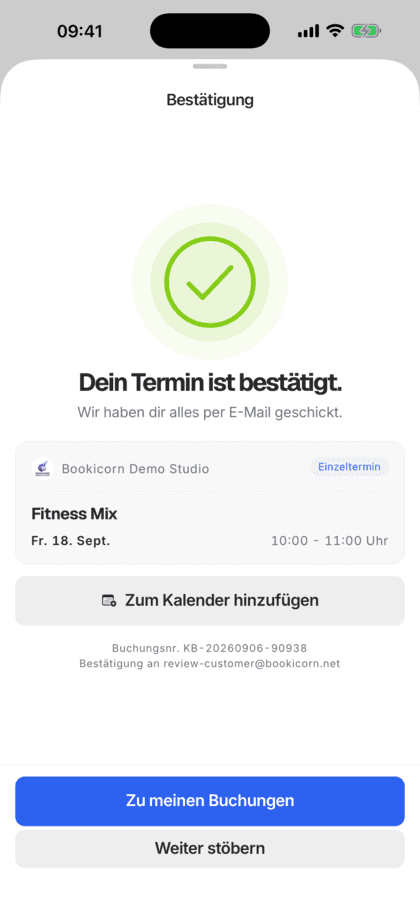
The offering page shows which platform it runs on and that the link comes after booking. Booking and payment work like for any session.
- 3
The link arrives automatically
The link appears as a button in the confirmation and in the reminder. In the client portal and the client app, your clients tap “Join”.
What online classes can do
Everything an in-person session can do, plus a link that reliably reaches your clients.
All featuresOnline per offering
One toggle in the offering. Location and room drop away, and platform and link take their place. This works for fixed sessions, series, appointments and blocks.
Zoom, Teams, Meet or Webex
Choose Zoom, Microsoft Teams, Google Meet, Cisco Webex or “Other” and enter the link to your meeting. An online offering can't be saved without a link.
Link in confirmation and reminder
The booking confirmation, the reminder before the session and the email after your approval carry the “Join online” button.
Join with one tap
Booked clients find a “Join” button in their booking in the client portal and the client app that opens the meeting.
Link in the calendar entry
When clients add the session to their calendar, the link is in it as the location. So it's also where they look for it right before the start.
Clearly labeled
On your booking page, online offerings carry the “Online” label. The offering page shows which platform it runs on and that the link comes by email after booking.
Book and pay as always
Payment methods, credits, cancellation deadline, waitlist and booking rules apply just like for in-person sessions.
Also included
- No location or room needed
- One link for all sessions of the offering, changeable anytime in the offering
- Clients filter the schedule in the client app by online sessions
- Online sessions appear in the calendar next to all the others
- Also as one-on-one appointments where clients pick the time, such as online coaching
Start for free, no demo call
Create your account and set everything up in a few minutes. The Free plan stays free forever, and for 14 days you can also try every feature.
- Start right away, no demo call
- No credit card needed
- Cancel monthly
 BookicornFree plan
What online classes look like for you
Four typical setups. You choose the offering type as always, only the location is online.
Yoga studio
A morning online class as a weekly series, booked with the 10-class pass.
- Type
- Fixed sessions, series
- Platform
- Zoom
- Payment
- Credits
Tutoring
One-on-one afternoon lessons that students pick themselves, by video.
- Type
- Appointments
- Platform
- Microsoft Teams
- Duration
- 45 or 90 min
Language school
A conversation course over ten evenings, booked as a whole.
- Type
- Session block
- Platform
- Google Meet
- Sessions
- 10, every Wednesday
Coaching
One-on-one sessions in two lengths, paid online when booking.
- Type
- Appointments
- Duration
- 30 or 60 min
- Payment
- online
What others use together with online classes
Core features are included in every plan, add-ons you turn on when you need them.
Class and appointment scheduling
Single sessions, recurring series and appointments in one system, plus session blocks and rentals as add-ons. With the same payment methods and booking rules.
Learn moreNotifications and reminders
Reminders before the session, push in the client app, notifications in the Manager and emails about new bookings. You decide who hears about what.
Learn moreClient portal
Your studio's client portal: book and cancel sessions, buy credits, manage subscriptions, download invoices. In the browser and in the client app.
Learn moreEmail automation
Booking confirmation, reminder, cancellation, waitlist and payment: Bookicorn sends the emails automatically, in your studio's design and the client's language.
Learn moreCalendar Synchronization
Your sessions automatically in Google or iCloud Calendar, with occupancy and participants. Management sees every session, each instructor their own.
Learn moreClass packs
Sell 10-class packs and other class packs online. Bookicorn deducts credits with every booking and shows your clients their balance.
Learn moreFrequently asked questions about online classes
Answered briefly. The first sentence is always the answer.
Can't find your question?
Write to usZoom, Microsoft Teams, Google Meet, Cisco Webex or any other platform with a link. You pick it in the offering and enter the link to your meeting.
Still have questions about online classes?
Write to us in two minutes. You get a personal reply from people, not from a bot, and we tell you honestly whether Bookicorn is right for you.

Hi, I'm Daniel. Tell me briefly what you offer, and I'll tell you how to set it up in Bookicorn.
Daniel Haenle · replies personally

Ready to start your first online offering?
Create your account, switch an offering to online and enter your meeting link. The Free plan stays free, and you don't need a credit card.
- 14 days of every feature
- No credit card
- 0% commission
- No minimum term
Ready to go in minutes
- Create your account
- Add your first offering
- 3Share your booking page