




An attendance list for every session: print, check off, export
For every session you see who booked, how they paid and who booked along with them. You print the list with boxes to check off or export it as a CSV.
- Participant list, PDF and CSV in every plan
- Waitlist and cancellations are on the list too
- Check off digitally with the Digital Attendance add-on
Updated 25 September 2026
Attendance lists at a glance
- participant list, PDF and CSV
- In every plan
- with boxes to check off at the door
- for Excel and accounting
- CSV
- confirmed, waitlist, canceled
- 3 tabs
- PDF in your studio's language
- 7 languages
What is an attendance list for sessions?
An attendance list shows who is booked for a session and records who actually showed up. In Bookicorn, every session has a participant list that you print as a PDF with boxes to check off or export as a CSV. To check people off digitally in the app or let clients check themselves in by QR code, you use the Digital Attendance add-on.
- Who it's for
- For studios, schools and instructors who want to know who was there: group classes, kids' offerings, workshops and offerings with mandatory attendance.
- What you get
- A participant list per session with occupancy, payment method and groups, a PDF to check off, CSV export, and cancellations with time and message.
- What it costs
- Participant list, PDF and CSV are included in every plan, even the Free plan for €0. Digital check-off and QR check-in come with the Digital Attendance add-on.
What the participant and attendance list can do
Everything about a session in one place, in the browser and in the Manager app.
All featuresParticipant list per session
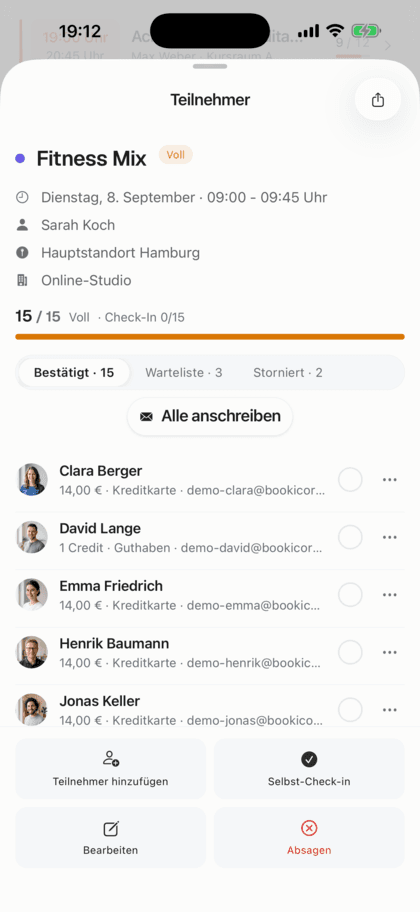
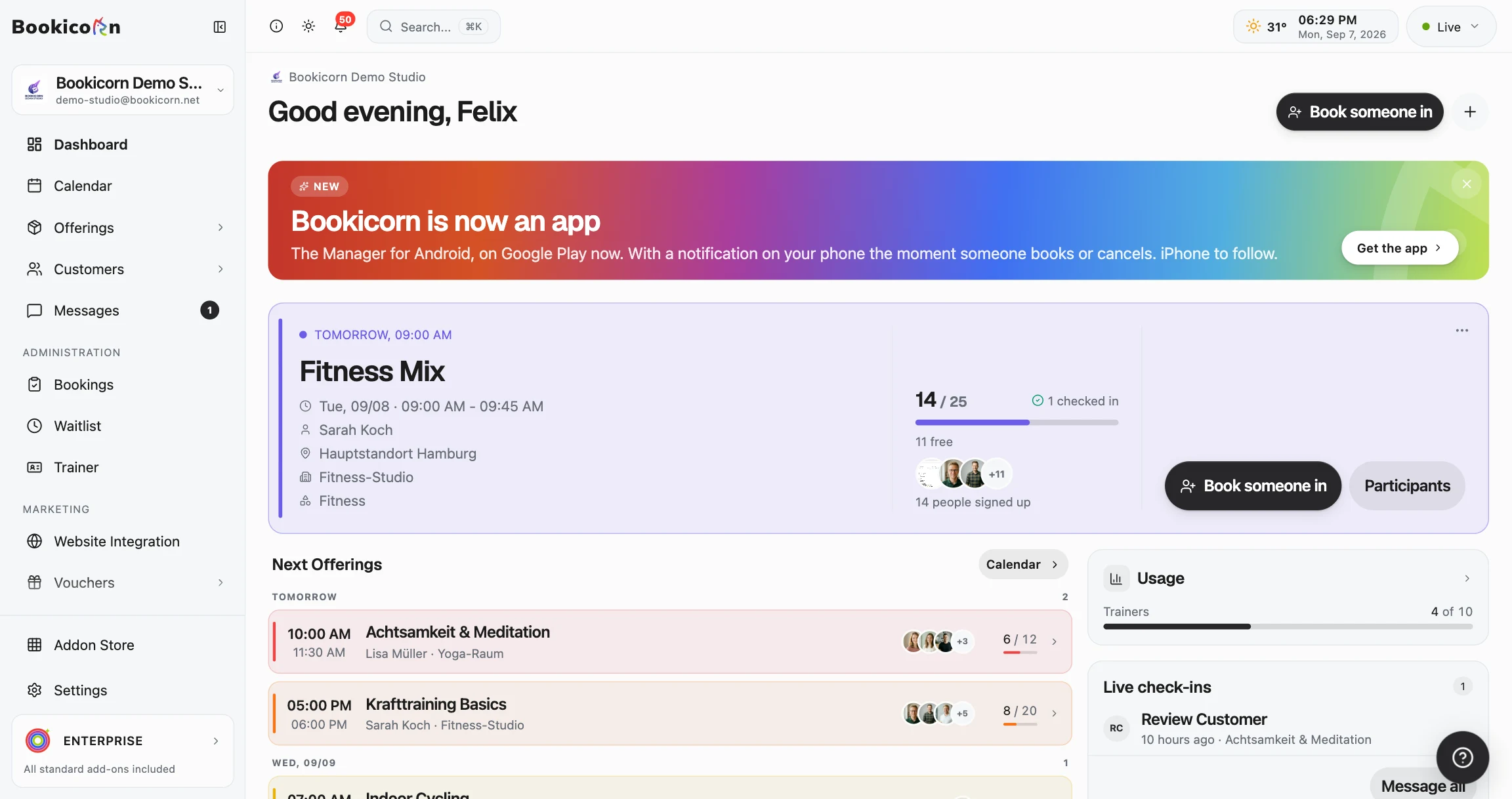
For every session you see who booked, split into confirmed and canceled, and with the Waitlist add-on also those waiting. Occupancy and open spots are at the top, such as 9 / 12.
Attendance sheet as a PDF
The printable list has a box to check off per person, plus contact, booking date and payment method. The waitlist and canceled bookings are below.
Export as CSV
For spreadsheets and accounting: name, contact, status, booking and cancellation date, payment method, amount, credits and invoice number per booking. Excel displays special characters correctly.
Who paid how
Each person shows the amount and payment method or the credits used. Groups stay together, with companions indented under the person who booked.
Message everyone
With one button you email everyone booked for a session, such as when the room changes or something needs to be brought along.
Check off digitally with the add-on
With the Digital Attendance add-on, you check off attendees right in the list, undo checks and see how many are already there. Clients can then also check themselves in by QR code.
Also included
- Canceled bookings with time, who canceled and the client's message
- A “Booked by …” note when a child or another person attends
- Book clients in and cancel right from the session
- Open the client profile from the list
- Rebook from the list with the Rebooking add-on
- A note per session and client with the Documentation add-on
- Open and print the PDF right in the browser, share it on your phone
- Instructors with their own login see the list unless you take away the permission
What others use together with the attendance list
Core features are included in every plan, add-ons you turn on when you need them.
Digital attendance
Clients check themselves into the session by QR code or location. You see in the Manager who is there and check in exceptions by hand.
Learn moreManual bookings and walk-ins
Your team books members and new guests in themselves, with payment method, price and a warning before a session gets overbooked.
Learn moreWaitlist
When a session is full, clients join the waitlist and move up automatically as soon as someone cancels. With a payment deadline or booked right away.
Learn moreDocumentation
Notes on every session right from the session and a private storage for intake forms, consents and contracts. Only your team sees them.
Learn moreCancel and reschedule sessions
Cancel sessions or whole series with a reason, or reschedule them. Bookings, refunds and emails to your clients run automatically.
Learn moreFrequently asked questions about attendance lists
Answered briefly. The first sentence is always the answer.
Can't find your question?
Write to usYes. For every session you export the participant list as a PDF, with a box per person to check off at the door. Contact, booking date and payment method are next to it, with the waitlist and cancellations below.
Still have questions about attendance lists?
Write to us in two minutes. You get a personal reply from people, not from a bot, and we tell you honestly whether Bookicorn is right for you.

Hi, I'm Daniel. Tell me briefly what you offer, and I'll tell you how to set it up in Bookicorn.
Daniel Haenle · replies personally

Never copy lists by hand again
Create your account, and the participant list is ready for every session, to print or as a CSV. The Free plan stays free, and you don't need a credit card.
- 14 days of every feature
- No credit card
- 0% commission
- No minimum term
Ready to go in minutes
- Create your account
- Add your first offering
- 3Share your booking page