




Scheduling calendar: every session, spot and instructor in view
The calendar in the Manager shows every session with time, instructor, room and occupancy, as week, month, day or list. Filters and the instructor list show you exactly what you need right now.
- Free plan, free forever
- No demo call, start right away
- No credit card
Updated 25 September 2026
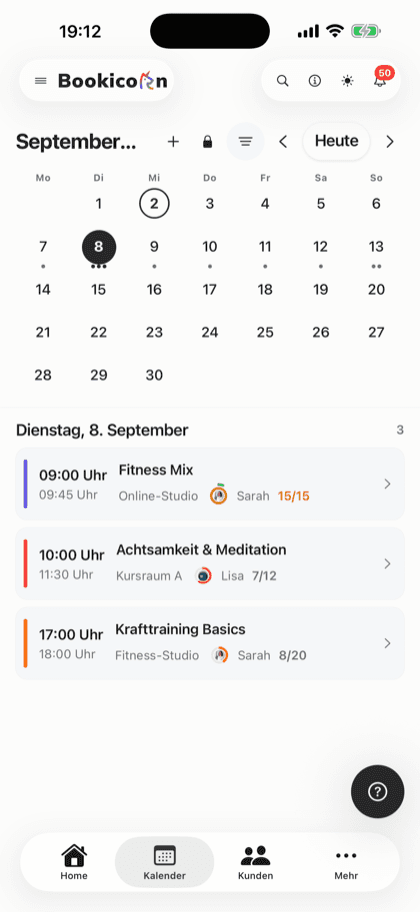
The calendar overview at a glance
- week, month, day and list
- 4 views
- booked and spots on every session
- Occupancy
- location, category and instructor
- Filters
- open hours right in the calendar
- Appointments
- included even in the Free plan
- In every plan
What does the calendar overview show?
The calendar overview shows all your studio's sessions as week, month, day or list, each with time, instructor, room and occupancy. In Bookicorn, you filter by location, category and instructor, see the open hours for appointments and create new sessions right there. One tap on a session opens the participant list, booking in, check-in and cancellation.
- Who it's for
- For studio management and teams keeping track of many sessions, rooms and instructors: in the office on a computer and on the go on a phone.
- What you get
- Four views, filters, an instructor list, the week's occupancy, the open hours for appointments and every action right on the session.
- What it costs
- The calendar overview is included in every plan, even the Free plan for €0. For resources and room blocks, there are matching add-ons.
Three calendars and still no overview?
- Who's teaching the 6 PM class on Thursday?
- How full is the workshop on Saturday, actually?
- Is room 2 still free on Friday?
Sessions in one calendar, bookings in another tool, the room plan on paper. Every question from the team means searching three places.
One calendar shows session, instructor, room and occupancy together. One tap on the session shows who's coming, and you book people in or cancel right there.
An overview in three steps
The calendar fills itself with all sessions of your offerings. You only choose how you want to see them.
- 1
Choose a view
Week, month, day or list. The calendar remembers the last view you chose for the next time you open it.
- 2
Filter to what matters
Filter by location, category and instructor. In the instructor list, you hide and show individual instructors with one tap.
- 3
Act on the session
One tap on a session opens the participant list. From there you book people in, check them in, edit or cancel.
What the calendar overview can do
One calendar for all offerings, rooms and instructors, in the browser on a computer just like in the app on a phone.
All featuresWeek, month, day and list
The hourly grid follows your opening hours and extends as far as your sessions go. The list shows the next four weeks grouped by day.
Occupancy on every session
Every session shows time, category, instructor with photo, room and how many spots are booked, in the offering's color. Canceled sessions appear gray.
Filters and instructor list
Filter by location, category and instructor. On a large screen, you hide and show individual instructors' sessions with one tap in the instructor list.
Open hours for appointments
The times when clients can book freely appear as a shaded area below the sessions, and in the month view such days are tinted. Tapping opens the offering.
Create a session right there
With the plus in the calendar, you create a single session, a series or an extra session for appointments.
Everything on the session
One tap opens the participant list. From there you book clients in, start the check-in, edit the session or cancel it.
The week at a glance
On a large screen, a sidebar shows the month in your offerings' colors, what's coming up next and how full the week is, in total and per category.
On your phone
On the phone, the calendar shows the day with a day strip that spans several weeks and marks days with sessions. You show the month when you need it.
Also included
- The last view you chose stays for the next time you open it
- Instructors without permission for all offerings only see their own sessions
- Resource view with occupancy per unit through the Resources add-on
- Room blocks in the calendar through the Occupancy Management add-on
- Sessions in your own Google or Apple calendar through the Calendar Synchronization add-on
- In the Manager in the browser, on iOS and on Android
Start for free, no demo call
Create your account and set everything up in a few minutes. The Free plan stays free forever, and for 14 days you can also try every feature.
- Start right away, no demo call
- No credit card needed
- Cancel monthly
 BookicornFree plan
How studios use the calendar overview
Four typical setups. Everyone on the team chooses their own view.
Yoga studio with two locations
The manager plans in the week view and filters by location to check the rooms on site.
- View
- Week
- Filter
- Downtown location
Fitness studio
The front desk runs the day view so the team sees who's coming next.
- View
- Day
- Action
- Check-in on the session
Massage practice
The open hours for appointments appear as a shaded area in the calendar, with booked treatments on top.
- View
- Week
- Offering type
- Appointments
Dance school
Each instructor hides the others in the instructor list and only sees her own classes.
- View
- Week
- Instructor list
- one person only
What others use together with the calendar overview
Core features are included in every plan, add-ons you turn on when you need them.
Calendar Synchronization
Your sessions automatically in Google or iCloud Calendar, with occupancy and participants. Management sees every session, each instructor their own.
Learn moreClass and appointment scheduling
Single sessions, recurring series and appointments in one system, plus session blocks and rentals as add-ons. With the same payment methods and booking rules.
Learn moreAvailability profiles
Set once when you can be booked: hours per weekday, individual open days and closed periods for vacations or holidays.
Learn moreOccupancy Management
Double-booking warnings for rooms and instructors, blocked days for rooms and locations, maintenance per room and only free room times for appointments.
Learn moreResources and reservations
Let clients reserve cabins, courts, equipment, animals and rental items online: with units, pricing rules, deposits and a calendar per resource.
Learn moreManual bookings and walk-ins
Your team books members and new guests in themselves, with payment method, price and a warning before a session gets overbooked.
Learn moreFrequently asked questions about the calendar overview
Answered briefly. The first sentence is always the answer.
Can't find your question?
Write to usWeek, month, day and list. With the Resources add-on, a view that shows occupancy per unit is added. On the phone you see the day with a day strip and show the month when you need it.
Still have questions about the calendar overview?
Write to us in two minutes. You get a personal reply from people, not from a bot, and we tell you honestly whether Bookicorn is right for you.

Hi, I'm Daniel. Tell me briefly what you offer, and I'll tell you how to set it up in Bookicorn.
Daniel Haenle · replies personally

Ready for a calendar that shows everything?
Create your account and add your first sessions. The calendar fills itself. The Free plan stays free, and you don't need a credit card.
- 14 days of every feature
- No credit card
- 0% commission
- No minimum term
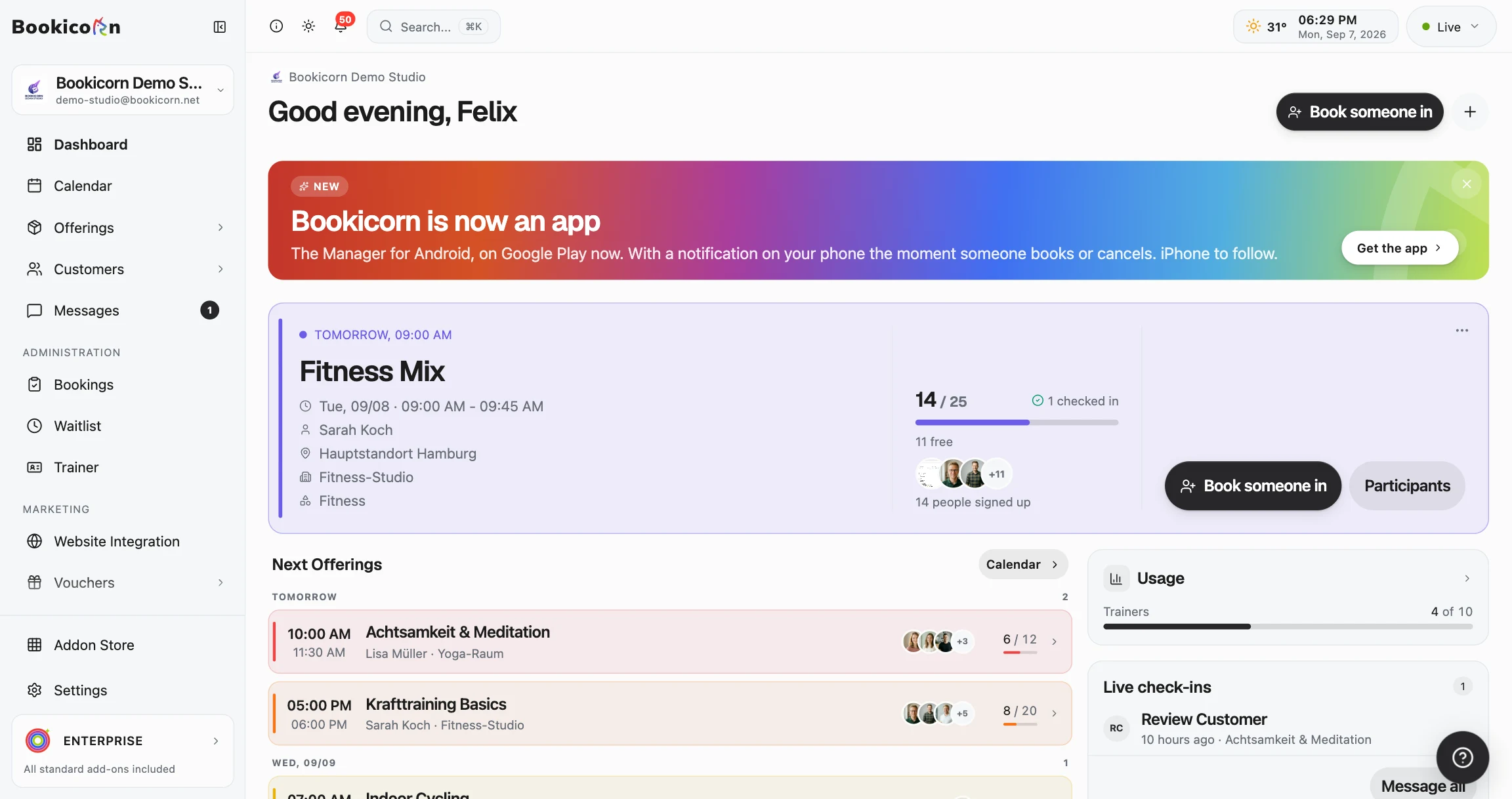
Ready to go in minutes
- Create your account
- Add your first offering
- 3Share your booking page