




Review widget: client testimonials right on your page
The Reviews section shows the star average and the latest approved reviews on your booking page. With the Website Integration add-on, you embed them on your own website too.
- Free plan, free forever
- No demo call, start right away
- No credit card
Updated 25 September 2026
The review widget at a glance
- cards, carousel or a single quote
- 3 layouts
- with stars and the number of reviews
- Average
- six reviews by default
- Number adjustable
- on your booking page, even the Free plan
- In every plan
How do I show customer reviews on my website?
You show customer reviews with the review widget of your Bookicorn booking page: the section shows the star average, the number of reviews and the latest approved reviews with name, date and text. In the builder you choose between cards, a carousel and a single quote. For your own website, there's a reviews block in the Website Integration add-on.
- Who it's for
- For anyone who wants to show new clients, before their first booking, what others have experienced with them.
- What you get
- Average and number, three layouts, your own heading, a number of your choice and a button for clients to leave a review themselves.
- What it costs
- On your booking page, the widget is included in every plan, even the Free plan for €0. For your own website you need the Website Integration add-on.
What the review widget can do
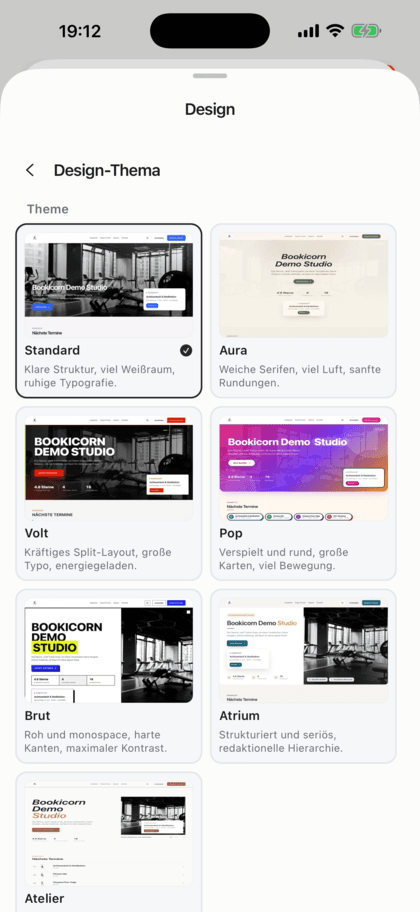
A block in your booking page builder that adapts to your design.
All featuresAverage and number
At the top of the section are the star average of your approved reviews and their number, next to the Write a review button.
Cards, carousel or quote
Show several reviews as cards, let them swipe in a carousel or feature a single one as a large quote. For the quote, Bookicorn picks the review with the most stars.
Name, date, stars and text
Each card shows the review's title and text, the person's name, month and year, and the stars.
Number and heading
You decide how many reviews appear, six by default. You change the section's heading and subtitle or hide the title.
Only approved reviews
Only reviews you've approved in the Manager appear, the newest first. Without an approved review, the section stays hidden.
Matches your theme
Every theme of your booking page styles the section its own way, and colors and fonts follow your design.
On your own website
With the Website Integration add-on, you place a reviews block on your website: with minimum stars, number, as cards or a carousel and, if you like, a button to leave a review.
Also included
- Average also in the numbers block of your booking page
- Depending on the variant, also in the header
- Its own Reviews menu item on the booking page
- Reviews only with a client account
What others use together with the review widget
Core features are included in every plan, add-ons you turn on when you need them.
Reviews
Your clients review your studio with stars and text. You approve every review before it appears on your booking page.
Learn moreReview management
All client reviews in the Manager: approve, decline or delete, with the star average and the person's bookings in view.
Learn moreBooking website builder
Build your booking page from almost 30 blocks in the builder, in rows with up to four columns, with a preview for desktop, tablet and phone.
Learn moreWebsite Integration
Embed your class schedule, upcoming sessions, prices and team as a widget in your existing website, with a code snippet for WordPress, Wix and more.
Learn moreThemes and branding
Design templates, your own colors, fonts, logo and favicon: your booking page, website widget and emails in your studio's look.
Learn moreFrequently asked questions about the review widget
Answered briefly. The first sentence is always the answer.
Can't find your question?
Write to usOn your Bookicorn booking page with the Reviews section, which is included in every plan. On your own website, you add a reviews block with the Website Integration add-on.
Still have questions about the review widget?
Write to us in two minutes. You get a personal reply from people, not from a bot, and we tell you honestly whether Bookicorn is right for you.

Hi, I'm Daniel. Tell me briefly what you offer, and I'll tell you how to set it up in Bookicorn.
Daniel Haenle · replies personally

Ready to show what your clients say?
Create your account, design your booking page and place the Reviews section where it fits. The Free plan stays free, and you don't need a credit card.
- 14 days of every feature
- No credit card
- 0% commission
- No minimum term
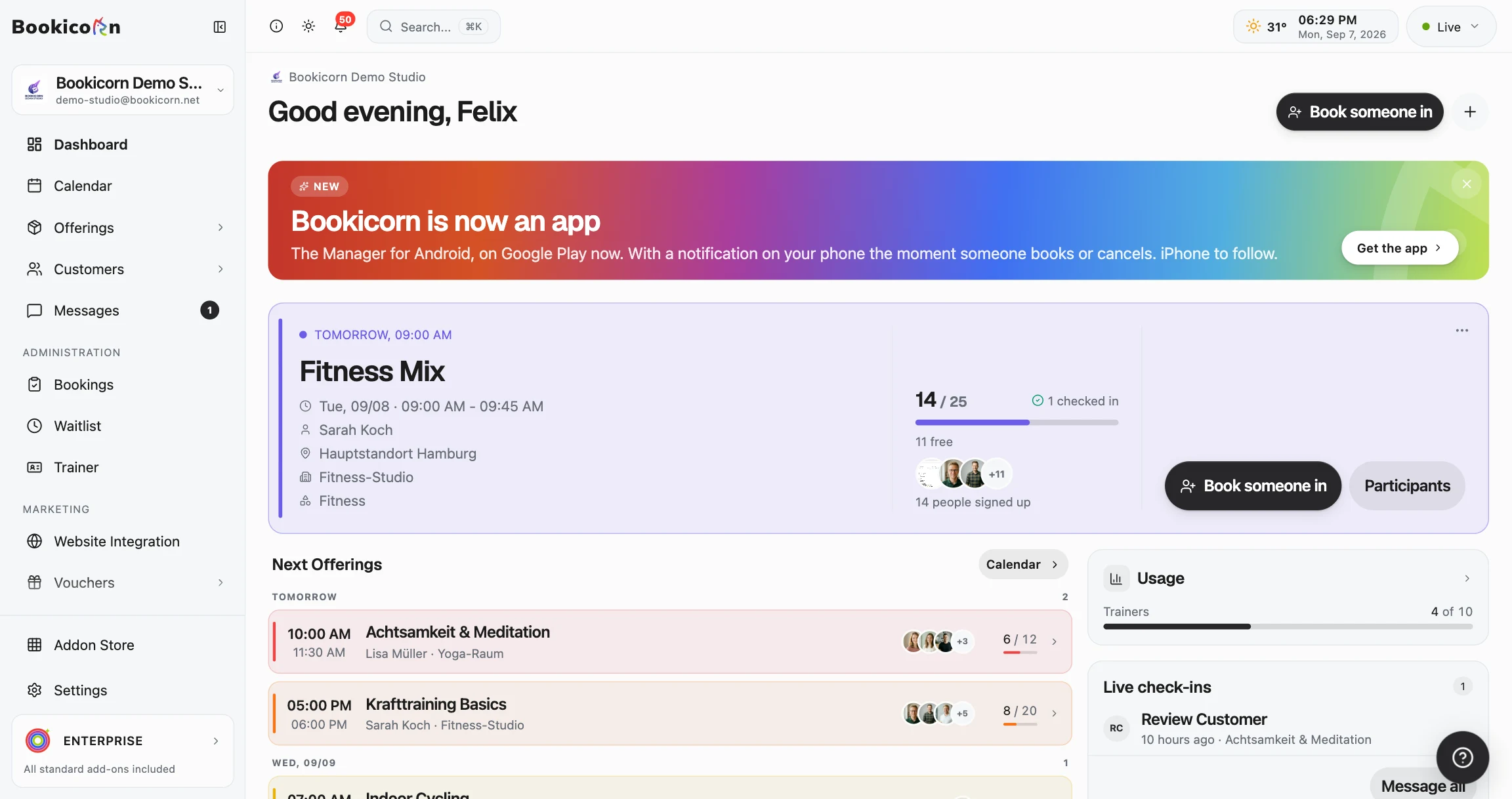
Ready to go in minutes
- Create your account
- Add your first offering
- 3Share your booking page