




Online payments with Stripe: paid before the session starts
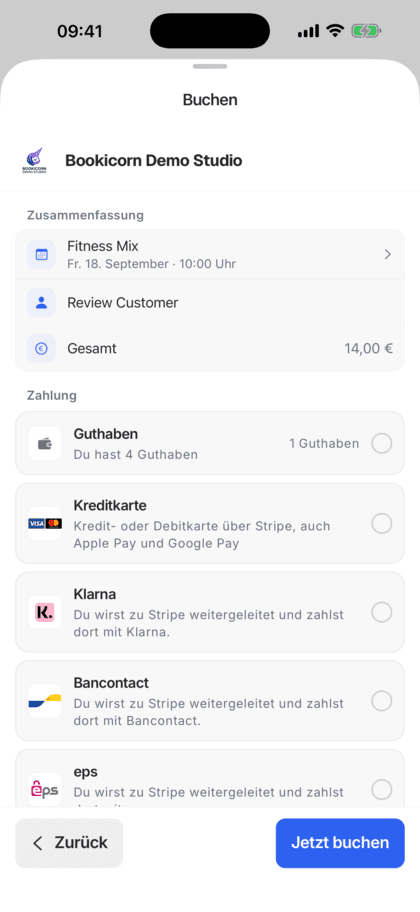
Connect your own Stripe account, and your clients pay right when booking by card, Apple Pay, Google Pay, Klarna and more. The money goes to your account, and Bookicorn takes no commission.
- Free plan, free forever
- No demo call, start right away
- No credit card
Updated 25 September 2026
Online payments at a glance
- included even in the Free plan
- In every plan
- commission from Bookicorn
- 0%
- the money lands in your Stripe account
- Directly to you
- connect an existing one or create a new one
- Your own account
- plus payment methods from your Stripe account
- Cards and wallets
- servers, GDPR-compliant
- Frankfurt
How do online payments with Stripe work in Bookicorn?
You connect your own Stripe account to Bookicorn, and after that your clients pay online right when booking, by card, Apple Pay, Google Pay or other payment methods that are active in your Stripe account. You are the merchant yourself, and the money goes directly to your Stripe account. Bookicorn takes no commission, and only Stripe's fees apply.
- Who it's for
- For anyone who no longer wants to chase bank transfers and cash payments: studios, schools, instructors and practices with sessions, workshops or class packs.
- What you get
- Payment right at booking, payment methods per offering, refunds through Stripe on cancellation, your Stripe account status and a fee calculator in the Manager.
- What it costs
- Online payments are included in every plan, even the Free plan for €0. Bookicorn takes 0% commission, and you only pay Stripe's fees.
Matching bank transfers and chasing payments?
- I'll send you the money tomorrow, is that okay?
- Can I pay by card with you too?
- I forgot the transfer, can I pay on site?
You match bank transfers with bookings, ask who still owes you, and hold spots that nobody ends up paying for.
Your clients pay right when booking, with the payment method that suits them. The money is in your Stripe account, and there's nothing to match up.
Online payments in three steps
You set up the connection once. After that you turn on Stripe per offering, no tech skills needed.
- 1
Connect Stripe
In the Manager you connect your existing Stripe account or create a new one. Stripe checks your details once, and Bookicorn shows you the status.
- 2
Choose payment methods per offering
Turn on Stripe per offering, together with PayPal, bank transfer, pay on site or credits if you like.
- 3
Clients pay when booking
Your clients choose the payment method and pay on Stripe's secure checkout page. They only enter card details at Stripe, never at Bookicorn.
What online payments can do in Bookicorn
From a single session to a class pack: Stripe works everywhere your clients pay.
All featuresYou're the merchant, the money goes to you
Every payment runs through your own Stripe account. Bookicorn takes no commission, and only a self-employed instructor's share is split off when needed.
Payment methods from your Stripe account
Card with Apple Pay and Google Pay, plus Klarna, PayPal, iDEAL, Bancontact or EPS, depending on what's active in your Stripe account. Your clients only see what you offer.
Stripe's secure checkout page
Payment happens on Stripe's checkout page, and in the embedded widget through Stripe's payment fields. Card details never pass through Bookicorn.
Payment methods per offering
Per offering you combine Stripe with PayPal, bank transfer, pay on site, credits, or make it free. If you turn off a payment method, Bookicorn warns you about offerings left without one.
Refunds on cancellation
When a booking paid online is canceled, Bookicorn refunds the amount to your client through Stripe. When you cancel yourself, you can also skip the refund, such as when you settle it on site.
Fee calculator in the Manager
Enter a sample price and see for each payment method what reaches you after fees, also compared to PayPal and for subscriptions.
Your Stripe account status
In the Manager you see whether onboarding, payments and payouts are active and which details Stripe still needs. You open your Stripe dashboard right from there.
Checkout in your clients' language
Stripe's checkout page appears in the language your client books in, and the button says Book instead of Pay.
Also included
- Connect your own Stripe account or create a new one
- Full access to your Stripe dashboard
- Sell class packs online through Stripe
- PayPal as a separate payment method through your PayPal business account
- You confirm bank transfers and payments on site in the Manager
- Instructor share automatically with the Trainer Payouts pay add-on
- Payment method chosen at booking, so Stripe doesn't ask twice
Start for free, no demo call
Create your account and set everything up in a few minutes. The Free plan stays free forever, and for 14 days you can also try every feature.
- Start right away, no demo call
- No credit card needed
- Cancel monthly
 BookicornFree plan
What online payments look like for you
Four typical setups from different industries. You set each combination per offering.
Yoga studio
Drop-in classes paid online, and regulars book with their 10-class pack.
- Drop-in class
- $18 via Stripe
- Or
- 1 credit
Creative workshop
A workshop with material costs, paid in advance so nobody drops out at the last minute.
- Price
- $65
- Payment methods
- Stripe, PayPal
Massage practice
New clients pay online, and regulars can pay on site if they prefer.
- 60 min
- $70
- Payment methods
- Stripe, on site
Personal training
One-on-one training with a self-employed trainer. With the Trainer Payouts pay add-on, his share goes to him automatically.
- Price
- $80 via Stripe
- Instructor share
- automatic
Stripe, PayPal or bank transfer and on site?
All payment methods run side by side, even within one offering. Here's how they differ:
| Question | StripeIncluded in every planThis page | PayPalIncluded in every plan | Bank transfer, on siteIncluded in every plan |
|---|---|---|---|
| Setup | Connect a Stripe account | Credentials of your PayPal business account | Add bank details, on site needs no setup |
| When is it paid? | Right when booking | Right when booking | When you confirm receipt |
| Refund on cancellation | Automatic through Stripe | Automatic through PayPal | You refund yourself |
| Instructor share automatic | Yes, with Trainer Payouts | No | No |
| Fees | Stripe's fees | PayPal's fees | None from Bookicorn |
What others use together with online payments
Core features are included in every plan, add-ons you turn on when you need them.
No commission
Bookicorn takes 0% commission on bookings, class packs and subscriptions. The money goes directly to you, and only the payment provider's fees apply.
Learn moreRefunds
When you cancel a booking, Bookicorn refunds online payments automatically through Stripe or PayPal and returns credits. Cash payments become a reminder.
Learn moreClass packs
Sell 10-class packs and other class packs online. Bookicorn deducts credits with every booking and shows your clients their balance.
Learn moreTransaction overview
All your studio's payments in one list: with status, payment reminders, Stripe fees and payout status.
Learn moreInvoicing system
Automatic invoices and cancellation invoices for bookings, credit and gift card purchases, with ZUGFeRD PDF and a copy to your accounting.
Learn moreTrainer Payouts
Self-employed instructors get their share automatically through Stripe with every online payment. For employees, you record an hourly rate or flat fee.
Learn moreFrequently asked questions about online payments with Stripe
Answered briefly. The first sentence is always the answer.
Can't find your question?
Write to usYes. In the Manager you connect your existing Stripe account or create a new one along the way. That way you are the merchant yourself, and the money goes directly to you.
Still have questions about online payments?
Write to us in two minutes. You get a personal reply from people, not from a bot, and we tell you honestly whether Bookicorn is right for you.

Hi, I'm Daniel. Tell me briefly what you offer, and I'll tell you how to set it up in Bookicorn.
Daniel Haenle · replies personally

Ready for your bookings to come in paid?
Create your account, connect Stripe in a few minutes and turn on online payments for your first offering. The Free plan stays free.
- 14 days of every feature
- No credit card
- 0% commission
- No minimum term
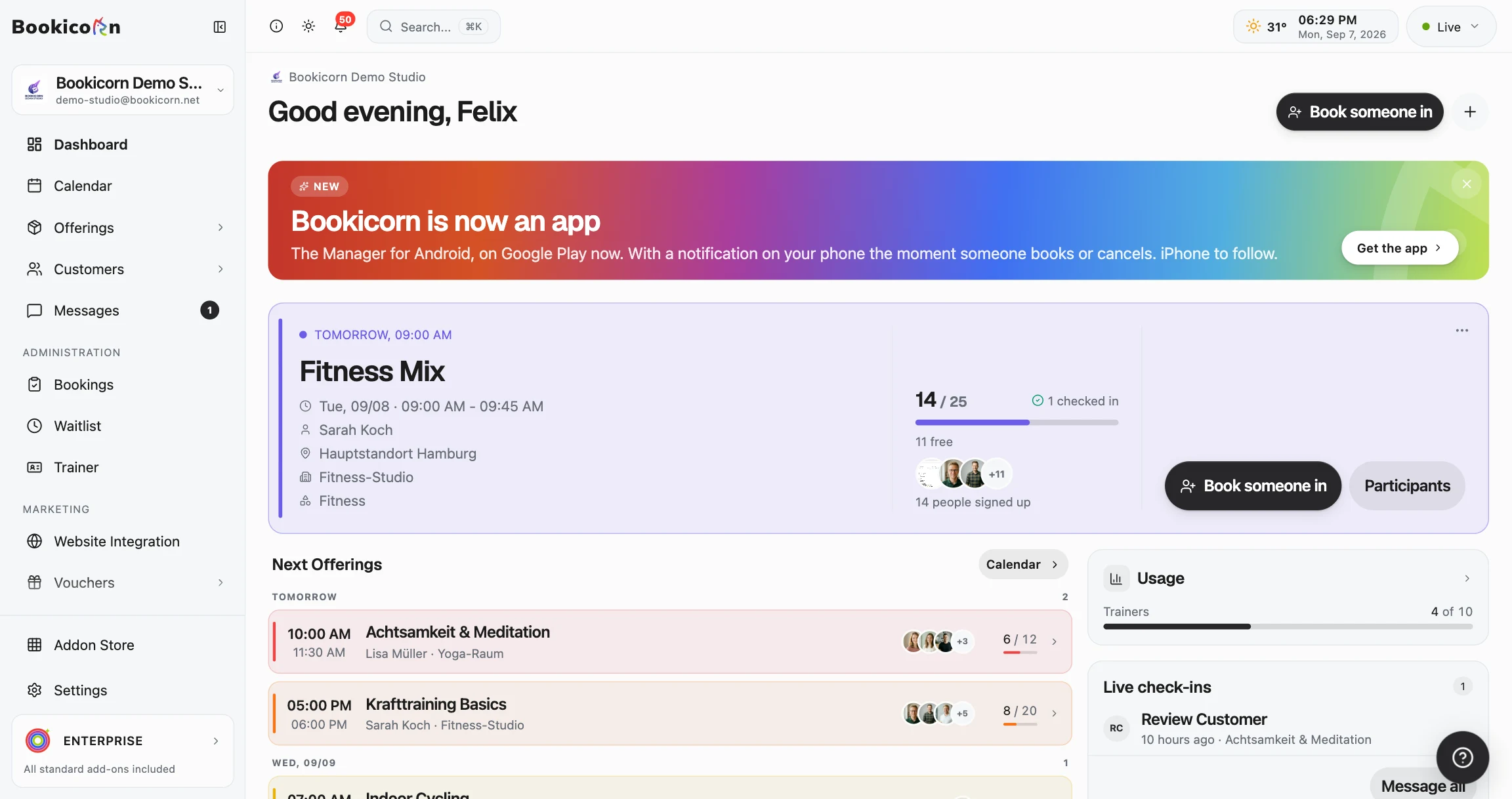
Ready to go in minutes
- Create your account
- Add your first offering
- 3Share your booking page