




Booking website builder: arrange blocks, save, go live
Build your booking page from blocks like Upcoming sessions, Team, Gallery, Credit packs and FAQ. On a computer, you drag them into place and see the real page as you go.
- Free plan, free forever
- No demo call, start right away
- No credit card
Updated 25 September 2026
The builder at a glance
- blocks in six groups
- Almost 30
- up to four columns per row
- 15 layouts
- preview on desktop, tablet, phone
- 3 devices
- which offerings a block shows
- Filters
- included even in the Free plan
- In every plan
- commission on your bookings
- 0%
How do I design my booking website?
You design your booking page in the Manager's builder: you put it together from blocks like Upcoming sessions, Weekly calendar, Team, Gallery, Credit packs or FAQ and arrange them in rows with up to four columns. In Bookicorn, each block has its own settings, such as variant, number or which offerings it shows. When you save, the new version is live right away.
- Who it's for
- For anyone who wants to build and change their booking page themselves, without a web designer and without coding.
- What you get
- Almost 30 blocks, 15 column layouts, variants and your own text per block, offering filters, display toggles and a preview for every device.
- What it costs
- The builder is included in every plan, even the Free plan for €0. Four blocks, such as gift cards or memberships, need the matching add-on.
Waiting on someone for every change to your page?
- Can you add the new workshop at the top?
- The prices on the page aren't right anymore.
- When can you get it done?
Every change to your page needs someone to build it in. Until then, the new workshop isn't anywhere, and the prices are out of date.
You drag the block into place yourself, set which offerings it shows, and save. Sessions and prices come from your Manager anyway.
Your page in three steps
You don't start with a blank page but with a ready-made layout that you adjust.
- 1
Pick a template
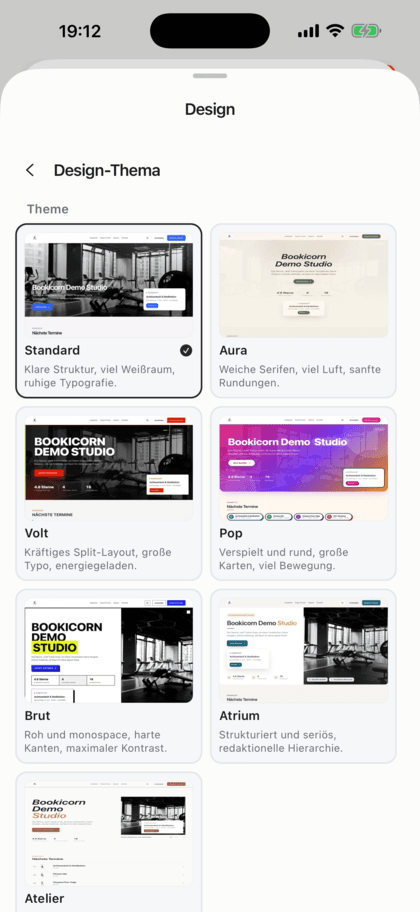
Every design template comes with a ready-made layout, such as hero, upcoming sessions, offerings, team, gallery, reviews and FAQ.
- 2
Arrange blocks
Drag blocks from the library onto the page, split rows into columns and set up each block, such as variant, number or filter.
- 3
Check and save
View the page as desktop, tablet and phone, in light and dark. When you save, the new version is live right away.
What the builder can do
From a simple class schedule to a page with gallery, promotions and prices: all from the same blocks.
All featuresAlmost 30 blocks
In six groups: hero and header, offerings and sessions, studio and team, location and contact, trust and content, payment and conversion. A search finds every block.
Rows and columns
15 layouts with up to four columns, plus stacked columns with several blocks on top of each other. On a phone, the columns sit one below the other.
Filter offerings per block
Offering and session blocks can show only certain categories, people or individual offerings, such as a weekly calendar just for kids' offerings.
Variants and your own text
Many blocks have several variants, such as Slideshow, Split or Minimal for the hero. You override the title and subtitle per block and hide it on phones if needed.
Preview for every device
On a computer you see the real page while editing, as desktop, tablet or phone and in light or dark.
Display toggles
Hide categories, send offering cards straight to booking, hide “Learn more” on the team or “Show map”, show the team by first name only. Each toggle applies to the whole page.
Your own content
Promotions with discount code and validity, news posts, a call to action with two buttons, key figures and a free block with formatted text or HTML.
Blocks from add-ons
Memberships, gift cards, trial packs and subsidized offerings come with the matching add-on. Without the add-on, the catalog still shows them and leads to the Add-on Store.
Also included
- On the phone: a sortable list, press and drag
- Hero with several slides and your own buttons
- Sort by date, name or popularity
- Turn the save button for clients on or off
- FAQ from preset questions, your own or both
- Move, duplicate and delete rows
- Logo size, menu position and book button on phones
- Manage texts, gallery, FAQ and amenities in one place
- Back to the template's layout with one tap
Start for free, no demo call
Create your account and set everything up in a few minutes. The Free plan stays free forever, and for 14 days you can also try every feature.
- Start right away, no demo call
- No credit card needed
- Cancel monthly
 BookicornFree plan
How studios build their booking page
Four typical layouts. Each is put together from the same blocks.
Yoga studio
Upcoming sessions at the top, reviews next to them, the team and credit packs below.
- Row 1
- Hero, slideshow
- Row 2
- Sessions 2/3, reviews 1/3
- Template
- Aura
Martial arts school
Two weekly calendars one below the other: one just for kids, one for adults, filtered by category.
- Block
- Weekly calendar, 2 times
- Filter
- Category Kids
- Template
- Volt
Creative studio
A large gallery in a bento grid, with the workshops as a grid below and a promotion with a discount code.
- Gallery
- Bento
- Promotion
- Code FALL15
- Template
- Atelier
Personal training
About us with a photo and key figures, then a call to action for the first session and the contact details.
- About us
- With photo
- Call to action
- Book a trial session
- Team
- first names only
What goes well with the builder
Core features are included in every plan, add-ons you turn on when you need them.
Themes and branding
Design templates, your own colors, fonts, logo and favicon: your booking page, website widget and emails in your studio's look.
Learn moreStudio profile page
Your public studio page with sessions, prices, team, reviews and FAQ, bookable right there and with its own sitemap for Google.
Learn moreOffering page
Every offering gets its own page with its own link: description, sessions with open spots, price, instructor, location and gallery, bookable right there.
Learn moreVisibility control
You decide when your booking page goes live: set it up in peace and look at it with a test link, then open it to everyone and Google with one switch.
Learn moreWebsite Integration
Embed your class schedule, upcoming sessions, prices and team as a widget in your existing website, with a code snippet for WordPress, Wix and more.
Learn moreClass schedule views
Show your sessions as a weekly calendar, daily schedule, session list or offering tiles. Clients filter by category, instructor, time of day and location.
Learn moreFrequently asked questions about designing your booking page
Answered briefly. The first sentence is always the answer.
Can't find your question?
Write to usNo. You put the page together from ready-made blocks and set it up with toggles and dropdowns. Only if you want to, you add your own HTML code in the free block.
Still have questions about designing your booking page?
Write to us in two minutes. You get a personal reply from people, not from a bot, and we tell you honestly whether Bookicorn is right for you.

Hi, I'm Daniel. Tell me briefly what you offer, and I'll tell you how to set it up in Bookicorn.
Daniel Haenle · replies personally

Ready to build your booking page yourself?
Create your account, pick a template and arrange your blocks. The Free plan stays free, and you don't need a credit card.
- 14 days of every feature
- No credit card
- 0% commission
- No minimum term
Ready to go in minutes
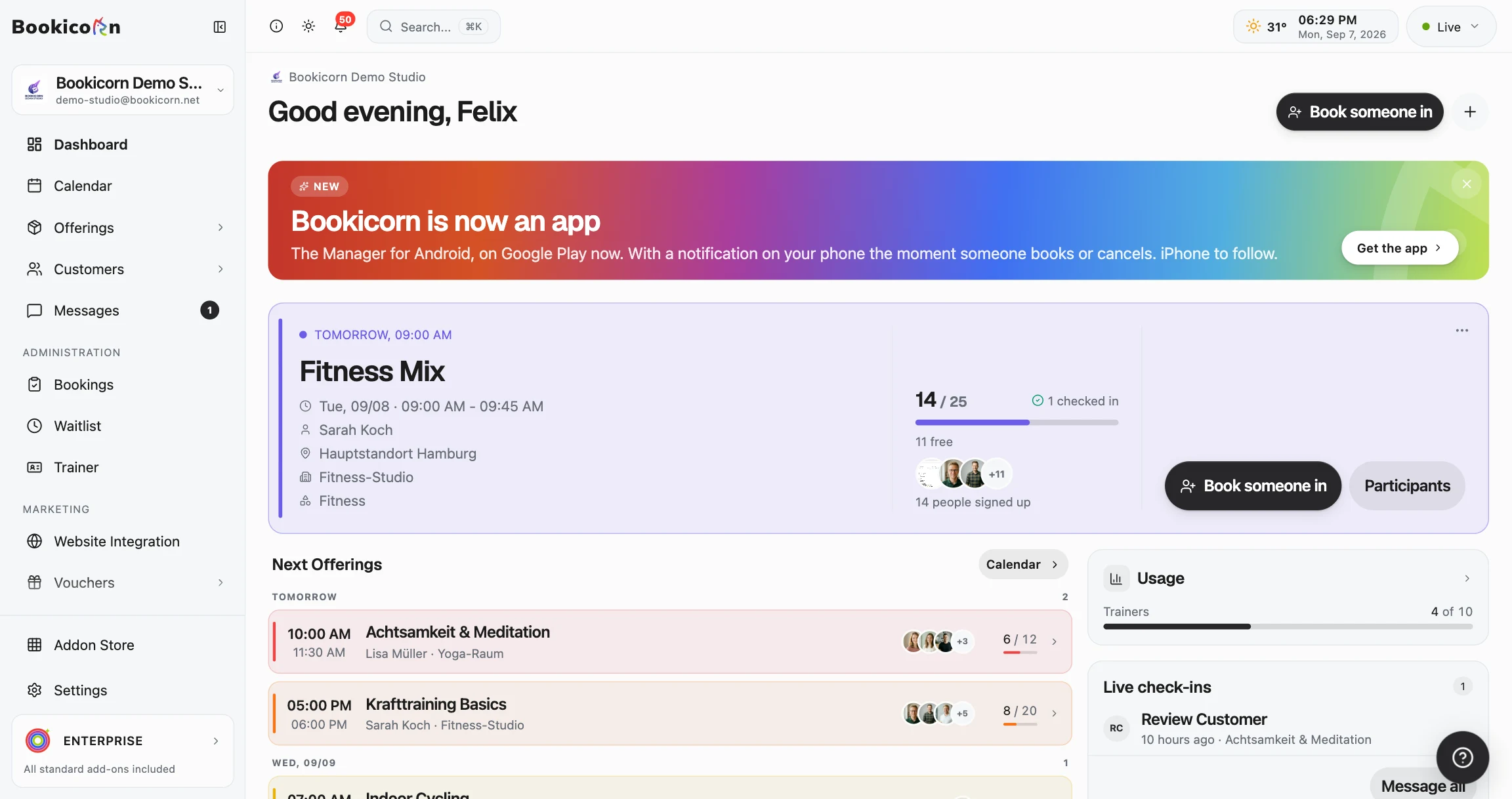
- Create your account
- Add your first offering
- 3Share your booking page