




Adding clients: by hand, by invitation or at booking
Enter existing clients yourself in the Manager and send them an invitation with a password link if you like. New clients create their account on their own at their first booking and appear in your client list right away.
- Free plan, free forever
- No demo call, start right away
- No credit card
Updated 25 September 2026

Adding clients at a glance
- included even in the Free plan
- In every plan
- first name, last name and email
- 3 required fields
- the invitation link is valid
- 7 days
- existing accounts are linked
- No duplicate accounts
- servers, GDPR-compliant
- Frankfurt
- invitation in your studio's language
- 7 languages
How do I add clients in Bookicorn?
You add clients in Bookicorn in the Manager under Clients: first name, last name and email are enough, and phone, birthday and address are optional. If you like, your client immediately gets an invitation with a password link. Everyone else creates their account on their own when they sign up on your booking page or in the client app, and then automatically appears in your client list.
- Who it's for
- For studios, schools and instructors who want to bring over existing clients from Excel, index cards or an old system, or enter clients directly at the front desk.
- What you get
- Adding with an invitation, linking of existing accounts, self-sign-up at booking, joining in the client app and a notification for every new client.
- What it costs
- Adding clients is included in every plan, even the Free plan for €0. On the Free plan the number of clients is limited, on the paid plans it is not.
Client data in Excel, on index cards and in your phone?
- Can you send me your email address again?
- Am I actually signed up with you already?
- What was your number again?
Contacts live in three lists, and none of them is up to date. Newcomers first end up in your phone and eventually in the spreadsheet, and nobody knows whether the email address is still correct.
Every client appears once in your client list, whether you added them or they signed up themselves. They keep their own details up to date in their account.
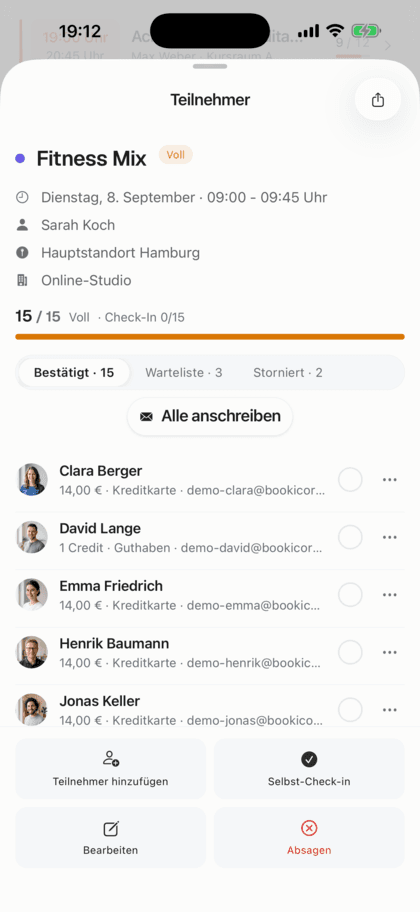
How a client gets into your list
Whether existing client or newcomer: in the end, every client appears with their account in your client list.
- 1
Enter the client
In the Manager under Clients, tap Create client and enter first name, last name and email. You can record phone, birthday and address right away too.
- 2
The invitation goes out
Leave the checkbox on, and your client gets an email in your studio's design with a password link. The link is valid for seven days.
- 3
The client is in
Your client sets their password, signs in and books on their own. In your client list you see status, bookings and credits at a glance.
All the ways clients come to you
You enter them, you invite them, or your clients come on their own. Either way, they land in the same client list.
All featuresEnter clients yourself
First name, last name and email are required, and phone, birthday and address are optional. Handy for existing clients or the front desk.
Invitation with a password link
The invitation comes in your studio's design and is valid for seven days. Without an invitation, your client signs in later via “Forgot password”.
No duplicate accounts
If the person already has a Bookicorn account, it's linked to your studio. If they're already your client, the Manager tells you right away.
Self-sign-up at booking
Anyone who signs up, books or buys credits on your booking page or in the client app automatically appears in your client list.
Joining in the client app
In the client app, clients find your studio through search or your QR code and join with one tap. You find the link and QR code for posters and flyers in the app settings.
Notification for every new client
Bookicorn reports every new client to you by email and in the Manager, no matter how they came.
Source at a glance
Every client shows how they came to you, such as through sign-up, the app, an online booking or a trial offer. You filter the list by it.
Also included
- Guests without an account when booking in, with the Guest Booking add-on
- Invitations to entire address lists with the Campaigns add-on
- Invitation in your studio's language
- Send a password link anytime later from the client record
- A warning before the client limit on the Free plan is reached
- Guests appear with a badge in the client list
Start for free, no demo call
Create your account and set everything up in a few minutes. The Free plan stays free forever, and for 14 days you can also try every feature.
- Start right away, no demo call
- No credit card needed
- Cancel monthly
 BookicornFree plan
How others add their clients
Three typical ways, depending on where your clients come from.
Moving from Excel
A yoga studio transfers its regulars by hand once and sends everyone the invitation. Anyone who misses it uses “Forgot password” later.
- Way
- Create client
- Invitation
- on
- Link valid
- 7 days
Sign-up at the front desk
A dance school enters newcomers on their first visit. The invitation arrives while they're still at the desk, and they set their password at home.
- Required
- Name and email
- Optional
- Phone, birthday
Poster with a QR code
A fitness studio puts the QR code from the app settings on the counter. Clients scan it, join and book right in the app.
- Way
- Client app
- Joining
- QR code or search
What others use together with adding clients
Core features are included in every plan, add-ons you turn on when you need them.
Client management
A client list with search and filters, client records with bookings, credits, notes and invoices, plus CSV export and GDPR-compliant removal.
Learn moreClient portal
Your studio's client portal: book and cancel sessions, buy credits, manage subscriptions, download invoices. In the browser and in the client app.
Learn moreGuest Booking
Clients book without an account or login, name and email are enough. Allow it per offering or switch your whole studio to guest-only booking.
Learn moreInvitation campaigns
Invite new clients by email with a personal link and see per campaign who clicked and signed up.
Learn moreManual bookings and walk-ins
Your team books members and new guests in themselves, with payment method, price and a warning before a session gets overbooked.
Learn moreFrequently asked questions about adding clients
Answered briefly. The first sentence is always the answer.
Can't find your question?
Write to usYes, uncheck “Send invitation by email” when adding them. The person is then only added and signs in later via “Forgot password”.
Still have questions about adding clients?
Write to us in two minutes. You get a personal reply from people, not from a bot, and we tell you honestly whether Bookicorn is right for you.

Hi, I'm Daniel. Tell me briefly what you offer, and I'll tell you how to set it up in Bookicorn.
Daniel Haenle · replies personally

Ready to bring your clients into one place?
Create your account, enter your first clients and send them the invitation. The Free plan stays free, and you don't need a credit card.
- 14 days of every feature
- No credit card
- 0% commission
- No minimum term
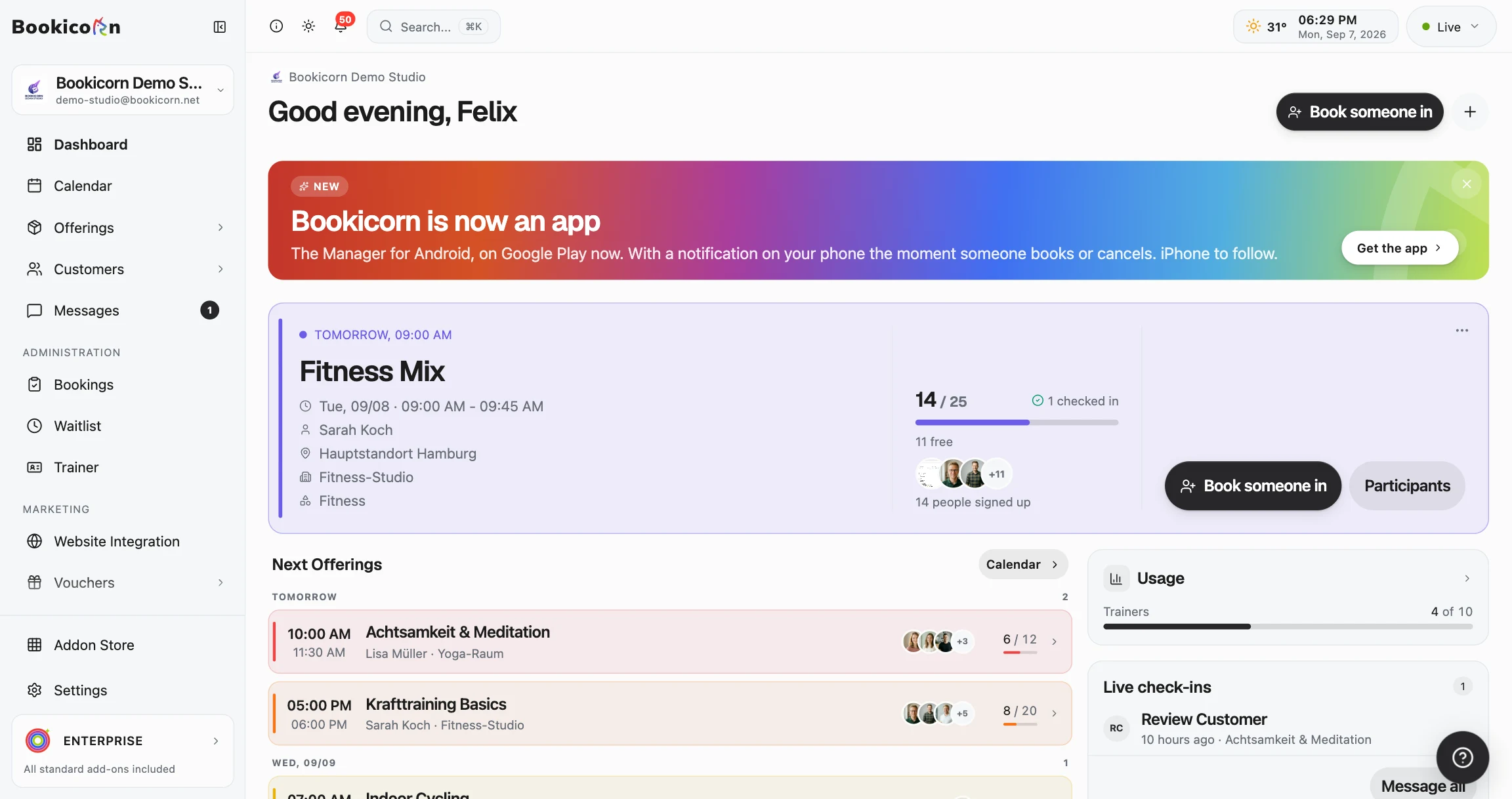
Ready to go in minutes
- Create your account
- Add your first offering
- 3Share your booking page