




Multi-location management: several places in one account
Add each location with address and map pin, assign rooms and offerings, and show your clients with a map and directions where their session takes place.
- Free plan, free forever
- No demo call, start right away
- No credit card
Updated 25 September 2026
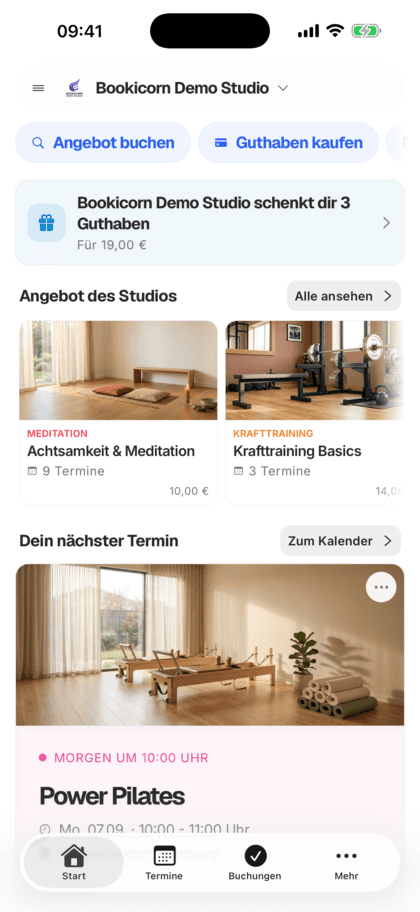
Location management at a glance
- included even in the Free plan
- In every plan
- as many locations as you need
- No limit
- for your clients on the booking page
- Map and directions
- enter a different location
- Per session
- radius for check-in with the add-on
- 200 m
- for you, your team and your clients
- 7 languages
How do I manage multiple locations in Bookicorn?
In location management, you add every place of your studio with name, address and map pin and assign rooms and offerings to it, all in one account. Your clients see all locations with a map and directions on your Bookicorn booking page, and in the client app they filter the schedule by location. Booking emails show the location of the booked session.
- Who it's for
- For studios, schools and clubs with more than one place: branches in several neighborhoods, satellite sites, gyms or outdoor meeting points.
- What you get
- Locations with address, map pin and description, rooms per location, a location per offering and session, a map on the booking page and a location filter in the client app.
- What it costs
- Location management is included in every plan, even the Free plan for €0. There's no limit on locations.
Clients standing at the wrong location's door?
- Is today's session downtown or at North?
- I'm standing at a locked door, where are you?
- Do you also offer this session at your other location?
Where a session takes place is in the title or only in your team's heads. Clients drive to the wrong place and message you right before the start.
Every session has its location. Clients see it with address and directions, filter by their location in the app and read it in the booking confirmation.
Multiple locations in three steps
You add each location once and change the address, rooms or assignment at any time.
- 1
Add a location
Name and address are enough. As you type, Bookicorn suggests matching addresses and places the pin on the map, which you can move if needed.
- 2
Assign rooms and offerings
Add rooms per location and choose in the offering where it takes place. You move individual sessions to another location when needed.
- 3
Clients find their way
The booking page shows your locations with a map and directions, and booking emails show the location of the booked session.
What location management can do
From a second branch to changing outdoor meeting points: all places in one account, no add-on needed.
All featuresAs many locations as you like
Add every place with name, address and description. There's no limit on locations in any plan.
Address suggestions and map pin
As you type, Bookicorn suggests matching addresses. You drag the pin on the map to the exact spot if needed, such as the entrance in the courtyard.
Rooms per location
Every room belongs to a location. The overview shows address, number of rooms and status for each location.
Location per offering and session
Choose the location in the offering. You move individual sessions to another place, and the offering stays as it is.
Map and directions on the booking page
The Location block shows all active locations with address and map, plus buttons for Apple Maps, Google Maps and directions.
Location filter in the client app
If your studio has several locations, clients filter the schedule by location and see it on every session.
Location in booking emails
The emails show the location of the booked session with room and address. If you only have one location, Bookicorn names it even for offerings without their own location.
Check-in at the location
With the Digital Attendance add-on, clients check in with the client app when they are no more than 200 meters from their session's location.
Also included
- Set a location to inactive, and it disappears from the booking page
- Delete once no rooms are assigned to it anymore
- Map link on the booking page can be hidden
- Create a new location right while creating an offering
- Instructors only see locations with the Locations permission
- Blocked days for entire locations with the Occupancy Management add-on
Start for free, no demo call
Create your account and set everything up in a few minutes. The Free plan stays free forever, and for 14 days you can also try every feature.
- Start right away, no demo call
- No credit card needed
- Cancel monthly
 BookicornFree plan
What location management looks like for you
Three typical setups from different industries. Each takes just a few minutes to create.
Yoga studio with two branches
Downtown and North, each with its own rooms. Clients filter by their branch in the app.
- Locations
- Downtown, North
- Rooms
- two halls each
- Client app
- Filter by location
Sports club
Two gyms and a sports field. Every session names the right address in the confirmation.
- Locations
- 2 gyms, 1 field
- Backup gym
- per session
- Map
- with directions
Dog training school
Training field and meeting point at the forest parking lot, both with an exact map pin.
- Locations
- Field, forest parking lot
- Map pin
- set at the entrance
- Check-in
- on site, with add-on
What others use together with location management
Core features are included in every plan, add-ons you turn on when you need them.
Room management
Create rooms per location with capacity, size and amenities, and assign them to your offerings and individual sessions.
Learn moreOccupancy Management
Double-booking warnings for rooms and instructors, blocked days for rooms and locations, maintenance per room and only free room times for appointments.
Learn moreDigital attendance
Clients check themselves into the session by QR code or location. You see in the Manager who is there and check in exceptions by hand.
Learn moreBooking website builder
Build your booking page from almost 30 blocks in the builder, in rows with up to four columns, with a preview for desktop, tablet and phone.
Learn moreCalendar overview
All your studio's sessions as week, month, day or list, with occupancy, instructor and room. Plus filters and the open hours for appointments.
Learn moreFrequently asked questions about location management
Answered briefly. The first sentence is always the answer.
Can't find your question?
Write to usAs many as you need, and there's no limit on locations in any plan, not even the Free plan.
Still have questions about location management?
Write to us in two minutes. You get a personal reply from people, not from a bot, and we tell you honestly whether Bookicorn is right for you.

Hi, I'm Daniel. Tell me briefly what you offer, and I'll tell you how to set it up in Bookicorn.
Daniel Haenle · replies personally

Ready to run all your locations in one account?
Create your account, add your locations with their addresses and assign rooms and offerings. The Free plan stays free, and you don't need a credit card.
- 14 days of every feature
- No credit card
- 0% commission
- No minimum term
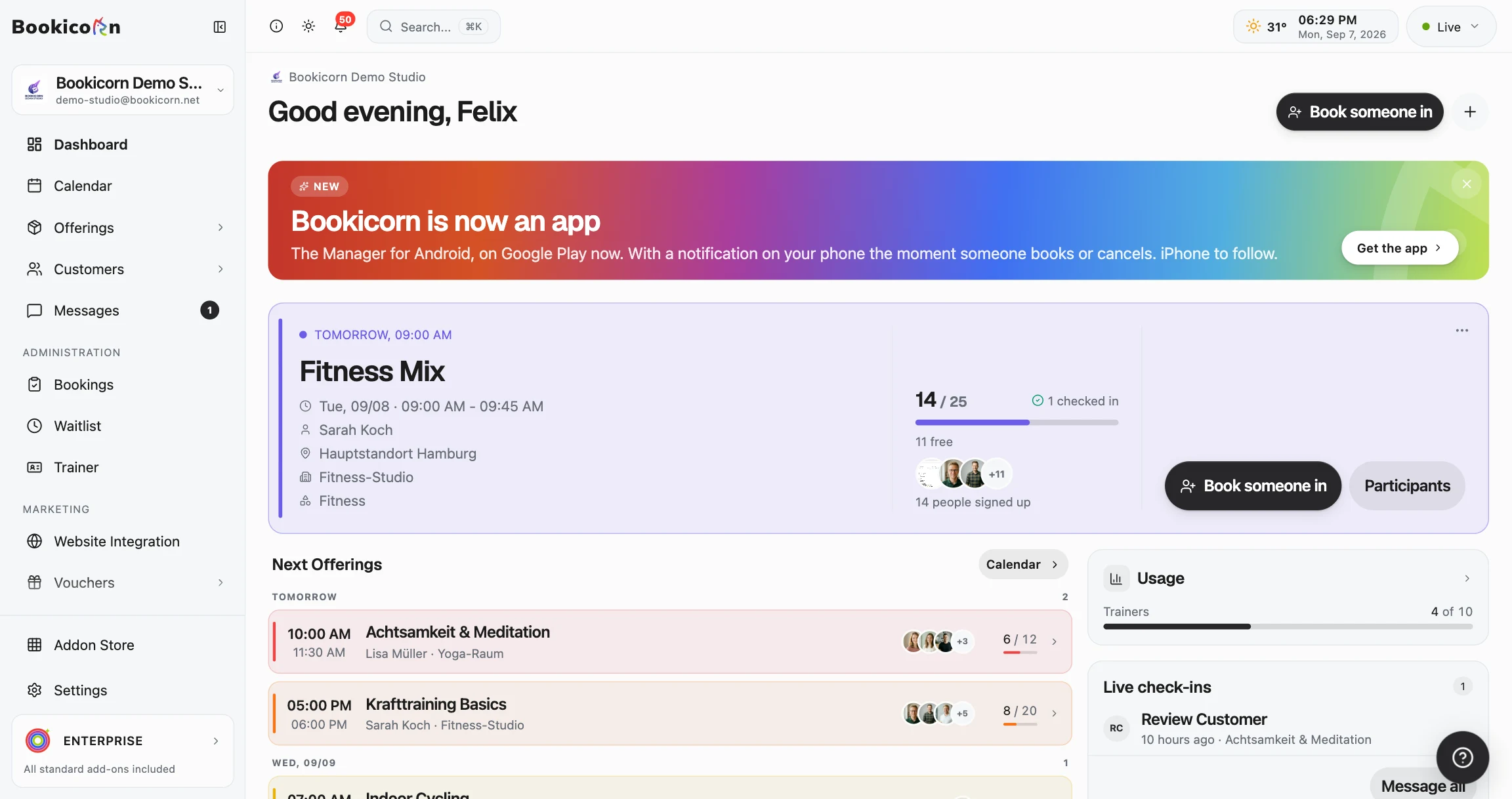
Ready to go in minutes
- Create your account
- Add your first offering
- 3Share your booking page